Members without access hit a dead end.
A locked page shows an error, a login loop or a message with no next step.
 Danica LouweUpdated 5 min read
Send anyone without access to a page that explains why and what to do next. Set a default for the whole site and specific redirects for paid courses and groups. Make sure the page itself is protected, then test by pasting a locked address while logged in as the wrong member.
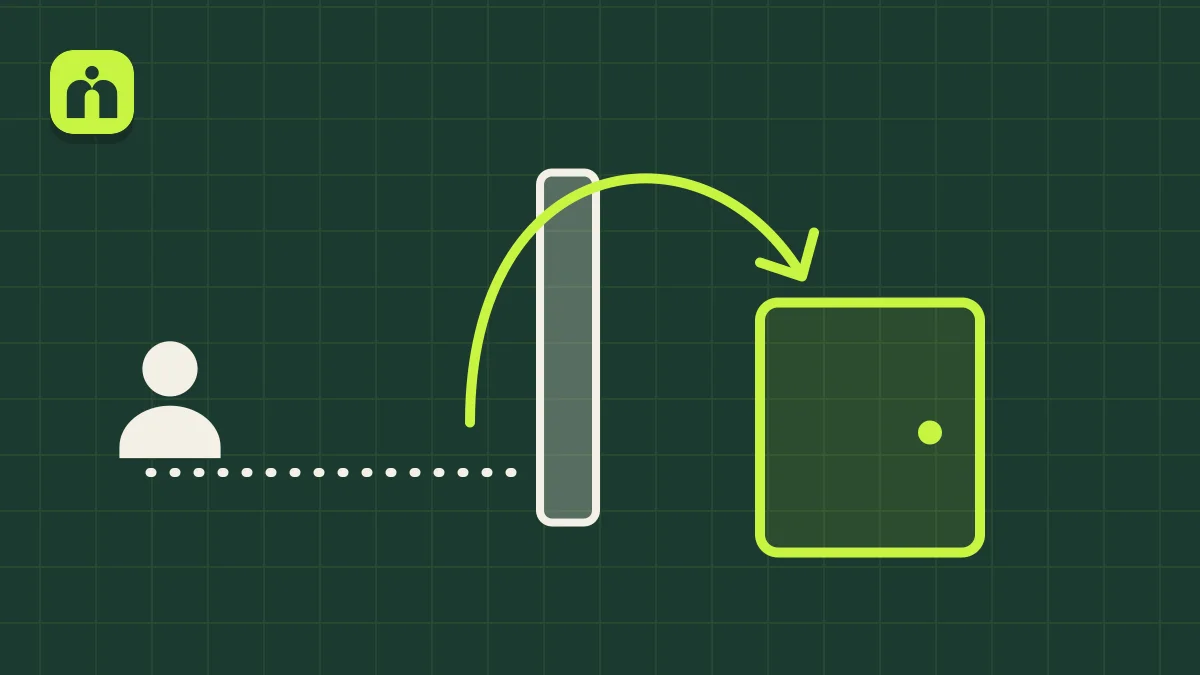
The lock works. Nobody decided what happens next.
Protecting a page is only half the job. The other half is what a member sees when they’re turned away. If no one sets that, they get a generic message, an error or the login page, with no idea what to do.
No redirect is set
With WP Fusion, leaving the redirect blank shows the restricted content message. That can be fine on a post, but on a course or group it may leave the member with nowhere to go.
Only the button is locked
A course list can show a locked button while the page behind it stays open. Someone who guesses the next address, like changing “day-1” to “day-2”, can walk straight in.
The redirect points somewhere unhelpful
A login page is the wrong answer for a member who is already logged in and simply doesn’t have that level. An upgrade page or a clear explanation works better.
Each door was set up differently
Courses, groups and pages were protected at different times. One redirects, one shows a message and one shows an error, so the same member gets three different answers.
Try every locked door as the wrong member.
We log in as a member at each level, and also test logged out, then try everything that member shouldn’t have.
- Each protected course, group and page: where does the wrong member end up?
- Direct addresses: paste a locked page’s link in rather than clicking through.
- Drip content: can someone jump ahead to a day or lesson that hasn’t unlocked?
- Lists and grids: is a locked item shown or hidden, and is that what you want?
- Logged-out visitors: do they get a login page, and do they return to the right page afterwards?
- The no-access page itself: does it explain why, and offer a next step?
Give every “no” a next step.
We decide what each turned-away member should do, then set it everywhere and test it. From your side it looks like this.
- 1
Write the pages
Usually an upgrade page, a “not unlocked yet” page and a login page. Each one says why they’re there and gives them one thing to do.
- 2
Set a default for the whole site
Anything without its own rule falls back to a sensible page, so a newly added page is never a dead end.
- 3
Add specific rules where they matter
A paid course redirects to its own upgrade page, and a group can do the same. On WP Fusion, a redirect set on a page takes priority over the site-wide default.
- 4
Protect the page, not just the link
The page itself checks for the tag, so a guessed or shared address leads to the no-access page instead of the content.
- 5
Test as the wrong member
Click through and paste addresses directly, at each level and logged out. Do it again after you add new courses.
The technical version, for your developer
The redirect should come from the access rule on the content, not from anything in the page layout. Here’s how it works in the two plugins from our videos.
- WP Fusion. In the content’s WP Fusion box, set the required tags and “Redirect if access is denied”, which takes a page on the site or a URL. Set the Default Generic Redirect in the plugin’s settings as the fallback. WP Fusion’s docs prefer a page-level redirect on courses and products.
- Memberium. Set required membership levels or tags on the content and choose the prohibited action. To keep locked content in a dynamic list, we set it to show the excerpt, then used a redirect shortcode wrapped in the hide-from-tag shortcode, so only members without the tag get sent away.
- Drip by tag. For a daily challenge, a CRM automation applies one tag every 24 hours and each day’s page requires its tag. That protects the page even if someone guesses the address.
- Testing. Use a test account or a user-switching plugin, not an admin account, because admins can see everything. Test with caching on.
How owners describe it
“This login is supposed to redirect to the Members Directory but it just loops back to the login page.”
Watch it done
A short walk-through on a BuddyBoss and LearnDash site: a required tag on a course and on a group, an upgrade page as the redirect, then a test as a member without the tag.
Questions owners ask
Should I hide locked content, or show it?
It depends on what you want members to do. Showing locked items can tell them what’s coming or what they could buy, so we often keep them in the list with the content protected. Hide them when seeing them would only confuse people.
What should the no-access page say?
Why they can’t see this page, and the one thing to do next: upgrade, wait for the next unlock, log in, or contact you. Someone who already paid needs a way to reach you from that page.
Can a member get in by typing the address directly?
They shouldn’t be able to, and it’s worth testing. A locked button only hides the link, so the page itself needs the protection too. Our test is to log in as a lower level and paste in the address of a locked page.
Do I need a different page for every course?
Not usually. Start with one sensible default for the whole site, then add specific pages where the next step differs, such as an upgrade page for a paid course.
Members get sent back to the login page in a loop. Is that the same thing?
It’s related but needs its own check, because the member may be logged in and the site isn’t recognising it, or the redirect points to a protected page. We test it logged out and logged in, with caching on.