Events and placesAll docs
Create an event
Add a live call, a Q&A or a workshop. Members say they’re going, add it to their calendar, and get reminders without you doing anything.
Create the event
- 1
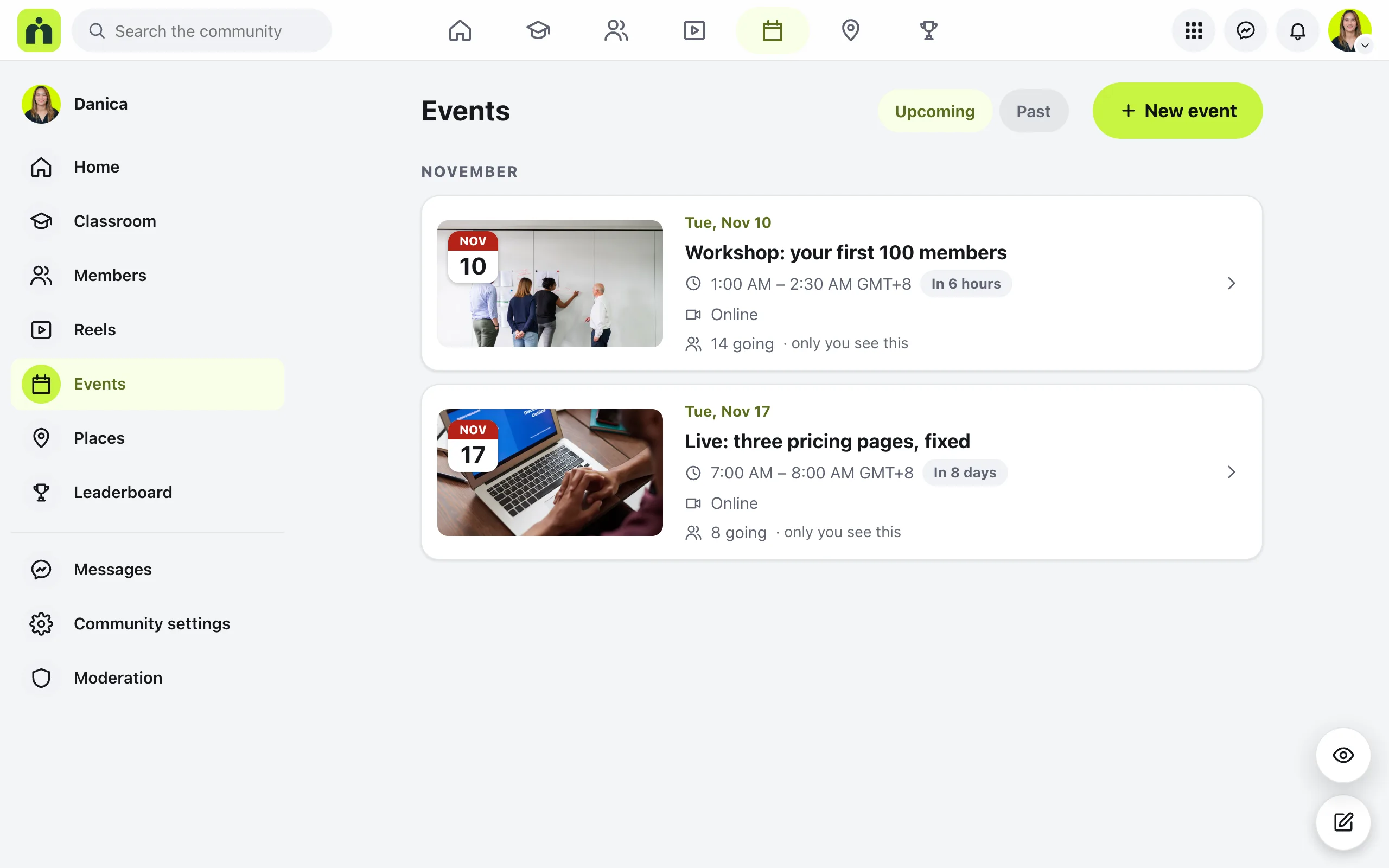
Open Events
In your community, open Events from the menu and press New event.
- 2
What is it?
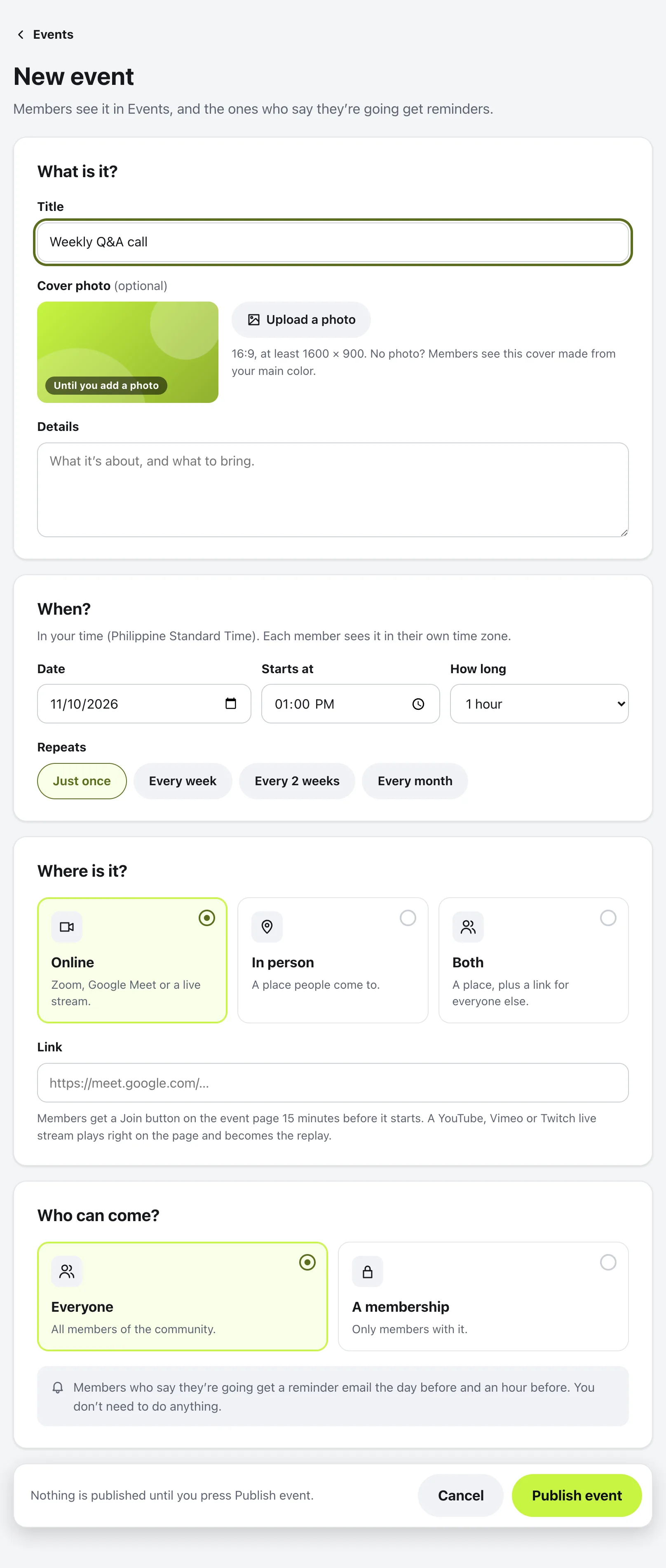
A title, like Weekly Q&A call, an optional cover photo (16:9 works best), and Details: what it’s about, and what to bring. No photo? Members see a cover made from your main color.
- 3
When?
The Date, when it Starts at, and How long. Under Repeats, choose Just once, Every week, Every 2 weeks or Every month. A repeating event is made for the next 3 months, and each one gets its own page, reminders and replay.
- 4
Where is it?
Online (Zoom, Google Meet or a live stream), In person (a place people come to), or Both. Paste the link for an online event, or type the address and press Find for an in-person one. It can also be one of your Places.
- 5
Who can come?
Everyone, or A membership, so only members with it see the event.
- 6
Publish it
Nothing is published until you press Publish event.
What members see
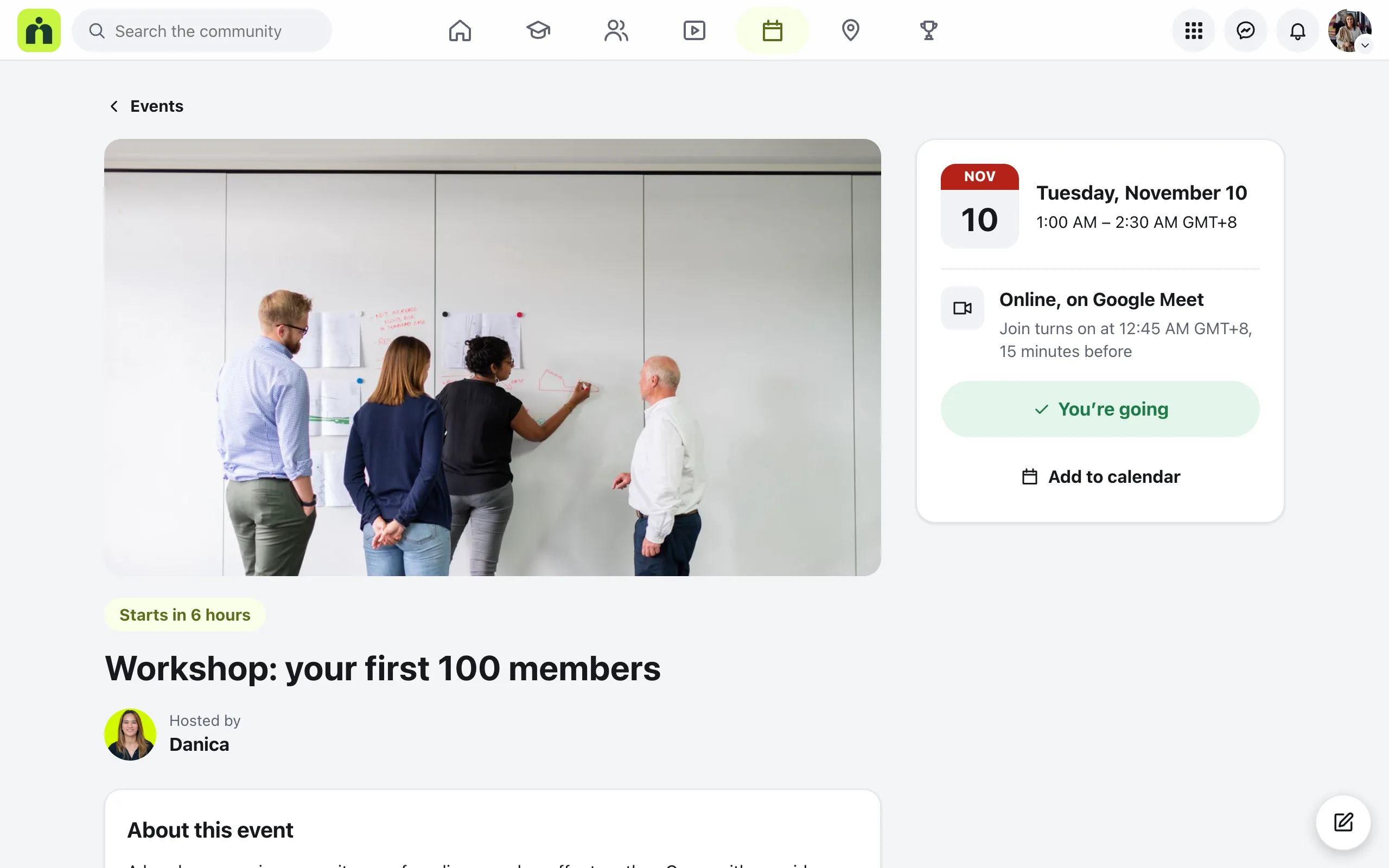
The event shows under Upcoming in Events, and in the feed. On its page, members tap I’m going. Everyone who says they’re going gets a reminder the day before and an hour before, in the app and by email.
Add to calendar adds it to Google Calendar, Apple Calendar, Outlook, or another calendar with an .ics file.
For an online event, the Join button appears on the event page 15 minutes before it starts. Until then, the page says when Join turns on.
Change, repeat or cancel it
On your event’s page, a bar only you see says You’re hosting this event, with:
- Edit event: change anything, then press Save changes.
- Duplicate: make a copy, like next week’s call.
Beside the number going, See who’s going shows who said yes. Only you see it.
To cancel, press Cancel this event… on its page. For a repeating event, Cancel all still to come… cancels the rest of the series. Everyone going is told.
Questions
Who can create events?
Admins and moderators. They see the New event button on the Events page.
Do members see the event in their own time?
Yes. You set the time where it’s held, and each member sees it in their own time zone. The event page shows both.
What happens if I change the time or cancel?
Everyone who said they’re going is told. A cancelled event stays on its page, marked Cancelled.
Is the join link shared before the call?
No. The Join button turns on 15 minutes before the start, and Add to calendar points to the event’s page, not the link itself.
Can members discuss the event?
Yes. Every event is also a post, so it shows in the feed, and the event page has its own Comments.
Stuck, or something not right? See Troubleshooting, or email us and we’ll help.