Running your communityAll docs
Your community’s data in wp-admin
Everything members make lives in your own database. The Community menu in wp-admin shows it, and exports it.
The Overview
In wp-admin, choose Community, then Overview. It says where your community is live, with an Open community button, then shows:

Under the numbers: reports waiting (with Review), how many private messages there are, how much space files use, a Last 30 days chart of posts and comments per day, and Latest activity. Each card opens its table.
While your setup list isn’t finished, the Overview opens with that list instead. See Finish setting up.
Members, posts, comments, files and courses
The tabs across the top each open a table, with search, filters and bulk actions.
Members
Everyone with an account on your site, with their level, activity, message count, last active and join date. Filter by Muted or Banned. Each row has View profile, Edit account, Mute 7 days and Ban, and bulk actions add or remove people from a member group.
Posts
Posts and reels, with reactions, comments and date, under Live, Hidden and Deleted. Pin to top, Hide, Show again or Delete.
Comments
Every comment, the post it’s on, and View in post or Delete.
Files
Photos, videos and documents members uploaded, with size, who uploaded them and where each is used.
Courses
Each course with who can open it, lessons, members started and finished. See progress shows each member’s progress in that course.
Courses are edited in the community, not here: Edit courses in the community takes you there.
Download it as CSV
Open the Export tab. Each card has a Download CSV button. CSV files open in Excel, Numbers and Google Sheets.
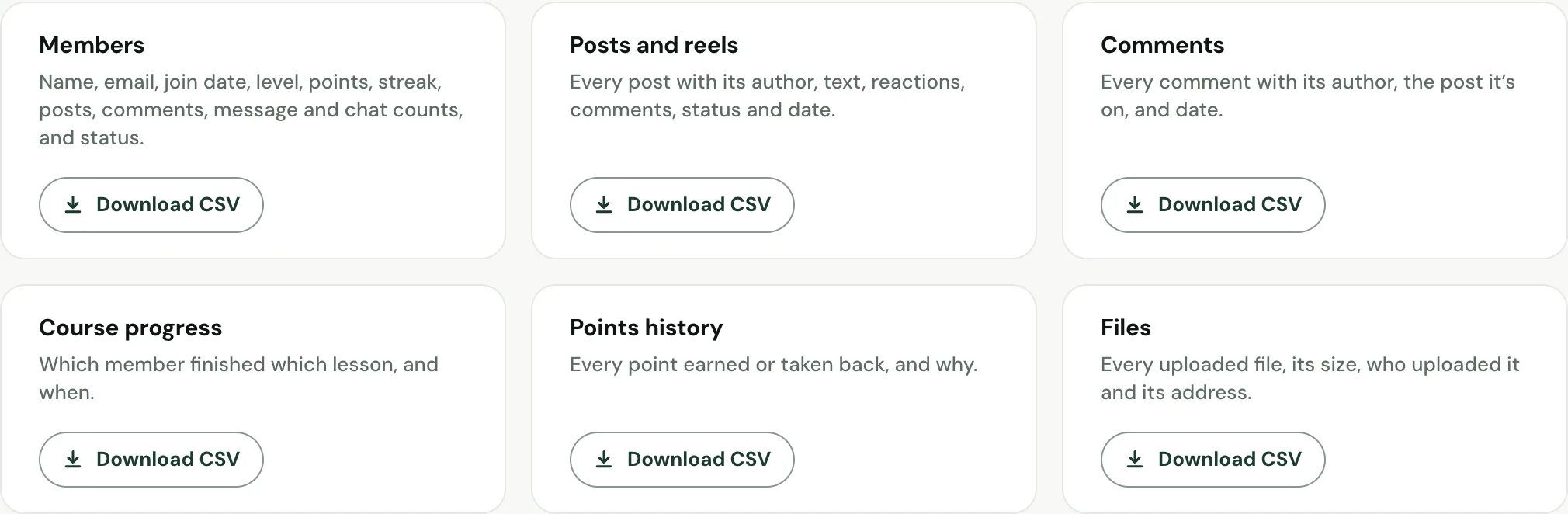
Private message text is never exported. Message counts are included with members.
When a member asks for their data
The community is part of WordPress’s privacy tools. At the bottom of Export, under A member asked for their data?, press Export personal data or Erase personal data.
Exporting includes their profile, posts, comments, points and course progress. Erasing removes their posts, comments, messages, stories, reactions and uploads.
Questions
Can I read members’ private messages?
No. Private messages are counted in wp-admin, never shown, and their text is never exported. Their text is stored encrypted.
Where is the data stored?
In your own WordPress database, in tables that start with mbcom_. Uploaded files are kept out of the Media Library, so members’ private photos stay private.
A member asked for their data. What do I do?
Use WordPress’s own tools: Export personal data and Erase personal data, both linked at the bottom of Community › Export. The community’s data is part of them.
What does the Problems tab show?
Errors in the plugin’s own code on your site, each listed once with how often it happened, and a Copy for support box.
Stuck, or something not right? See Troubleshooting, or email us and we’ll help.