Your websiteAll docs
Create your starter website pages
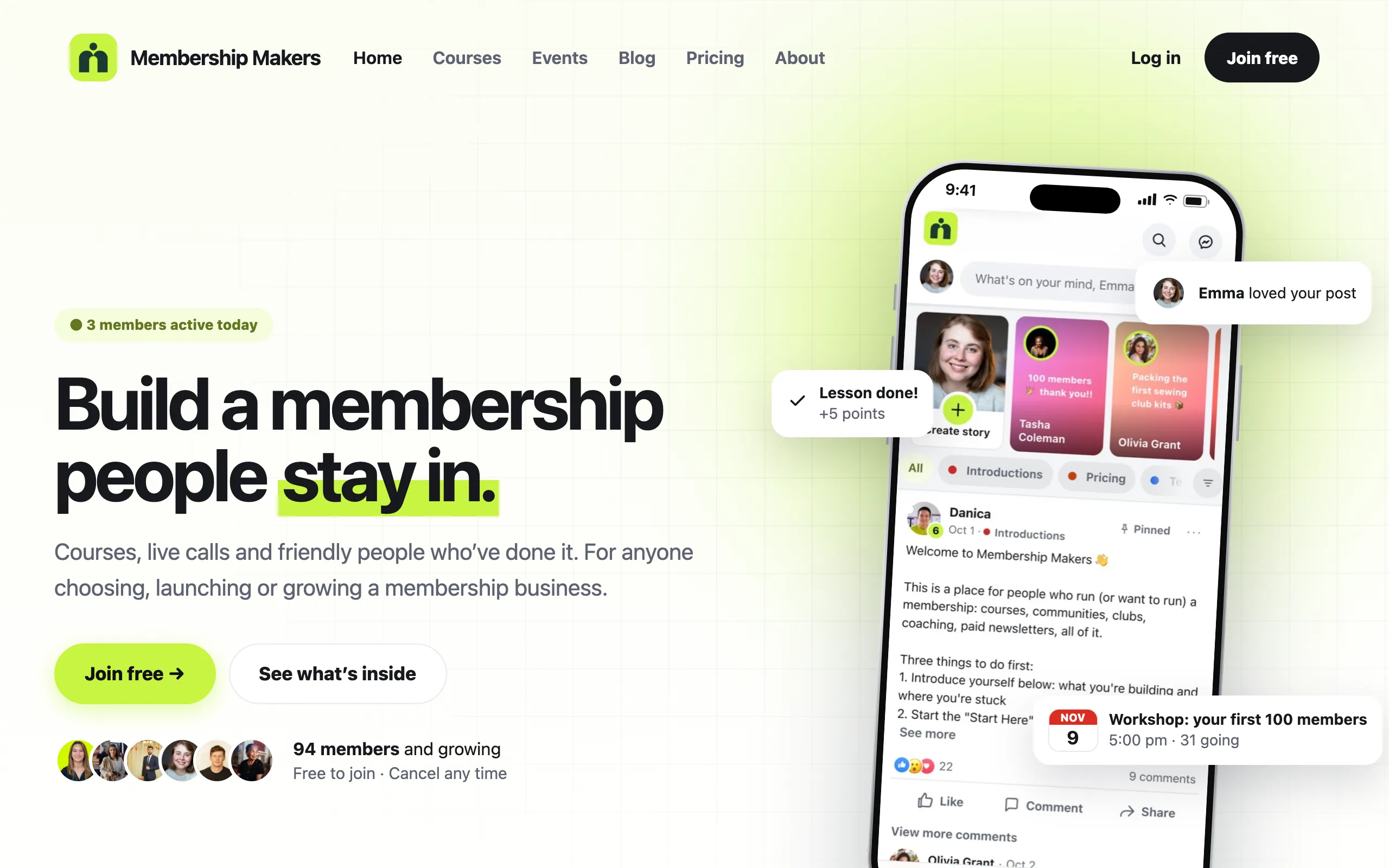
Ready-made pages for the rest of your website, in your community’s look, made with one button. You can undo it.
The pages you get
You tick which ones you want. They show your live courses, events, plans and member faces.
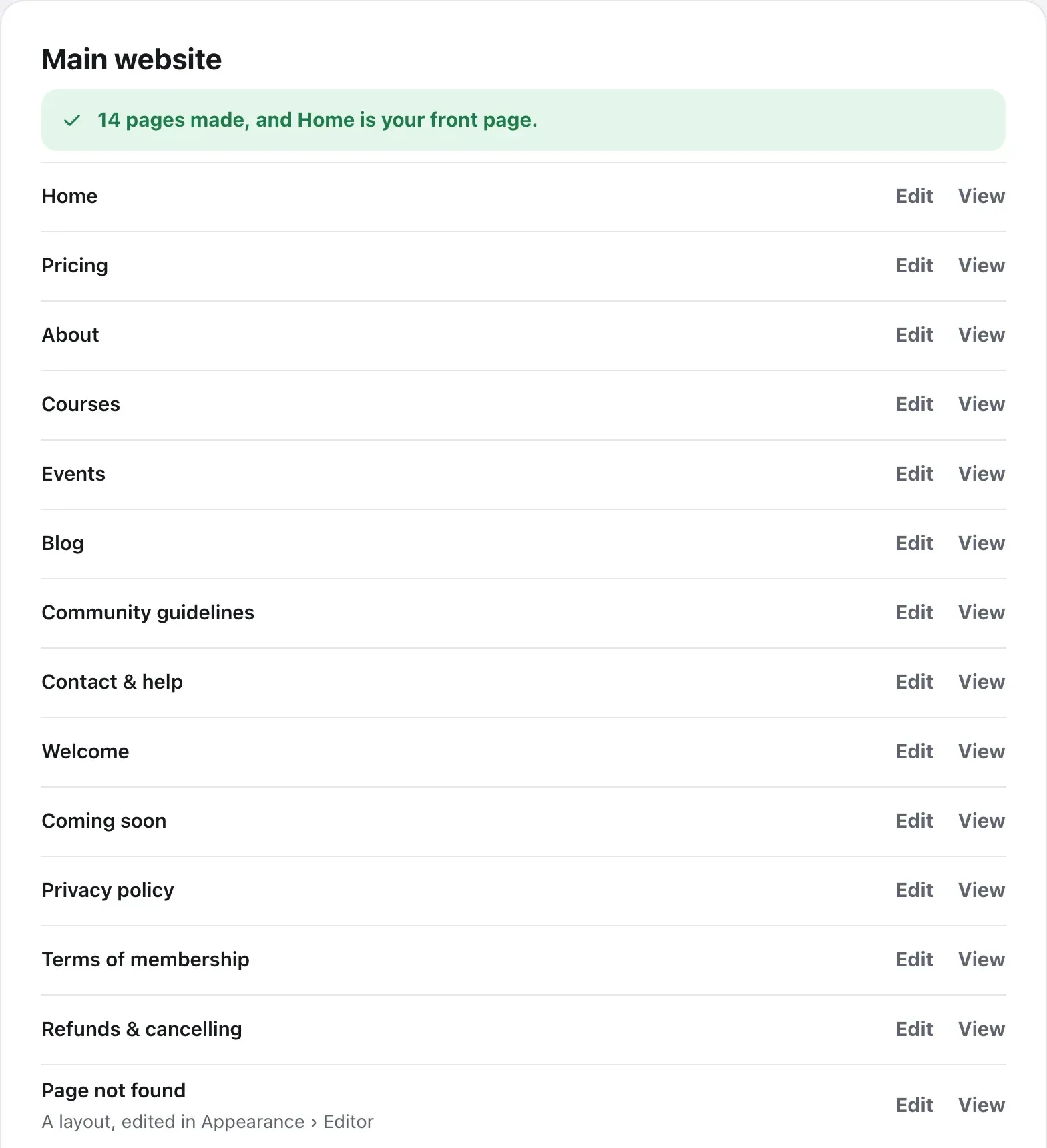
- Home, Pricing, About, Courses, Events and Blog
- Community guidelines, Contact & help and Welcome
- Coming soon, for collecting emails before you open
- Privacy policy, Terms of membership and Refunds & cancelling
- A Page not found layout, shown when a link is broken
Make them
- 1
Open Main website
In your community, open Settings, then Main website. Every page is ticked, except one your site already has.
- 2
Choose the front page and header
Leave Show Home as the front page of the site ticked to make Home your site’s first page. On a block theme, Use the matching header and footer adds a menu with Log in and Join.
- 3
Answer three questions
What is your community about? Who is it for? What do members get? Your answers are written into every page, and you can change any word later.
- 4
Pick your colour
Choose a main colour, or press + for any colour. It’s the same as your community’s colour in Settings, then Your community. Your logo comes from Site Logo.
- 5
Press Make my pages
It takes a few seconds. No answers yet? Use the example words makes the pages with neutral words you replace later.
After they’re made
Main website lists every page with Edit and View. Pages added in a later update show under New pages you can add, with Add these pages.
Under Colour and logo you can change the main colour, and tell it whether your logo already shows your name. Money-back promise sets the days your plans, Refunds page and checkout mention; 0 shows no promise. These save as you change them.
Changed your theme? Press Put the header and footer back when Main website asks.
Questions
Can I change the words and photos?
Yes. The pages are made of WordPress blocks, so you change any word or photo in the page editor. Press Edit beside a page in Settings, then Main website.
What if I already have an About or Privacy page?
Before you make the pages, any page you already have says You already have one, with a See it link. It isn’t ticked, so yours stays as it is.
My theme isn’t a block theme. Does it still work?
The pages are made, but your theme keeps its own header and footer. The free Twenty Twenty-Five theme shows them as designed.
How do I take them away again?
Press Remove the starter pages at the bottom of Main website. The pages move to the bin, and your old front page, header and footer come back.
Stuck, or something not right? See Troubleshooting, or email us and we’ll help.