Members and leaderboardAll docs
Profiles and the member directory
Every member has a profile with their photo, a line about them, their level and their posts. The Members page lists everyone, so people can find each other and say hello.
What’s on a profile
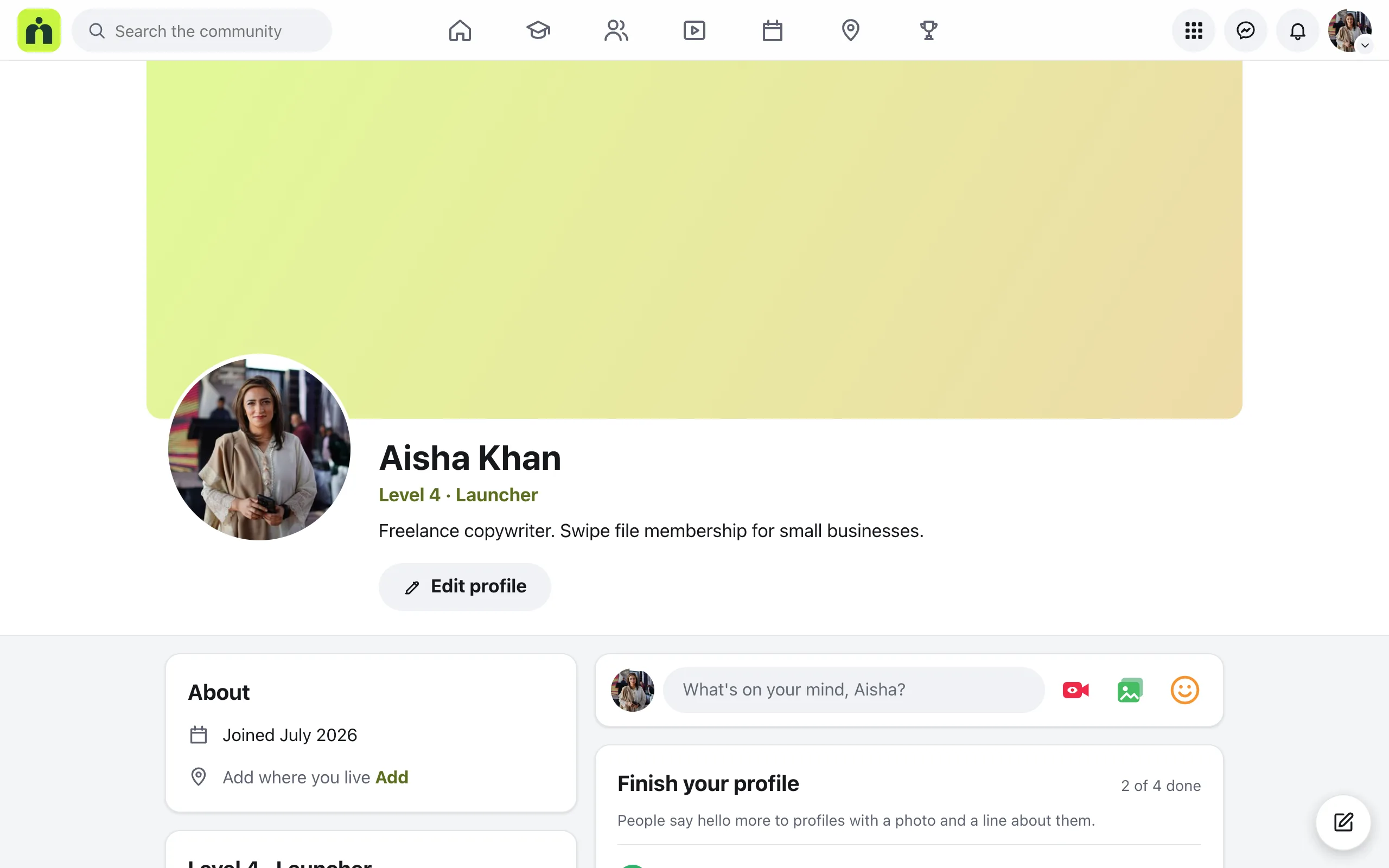
A profile shows the member’s photo and cover, name, level, bio, when they joined and where they live, then their posts. Other members see Message there to start a chat.
Photo and cover
On their own profile, members point at their picture, or at the top of the page, and click the camera to change it.
Edit profile
Name, About you (a line or two, so people know what they do) and Where you live, which is optional. Changes save by themselves.
Finish your profile
A short checklist on a member’s own profile: add a photo, write a short bio, add a cover photo and say hello in Home. It shows how many are done.
The Members page
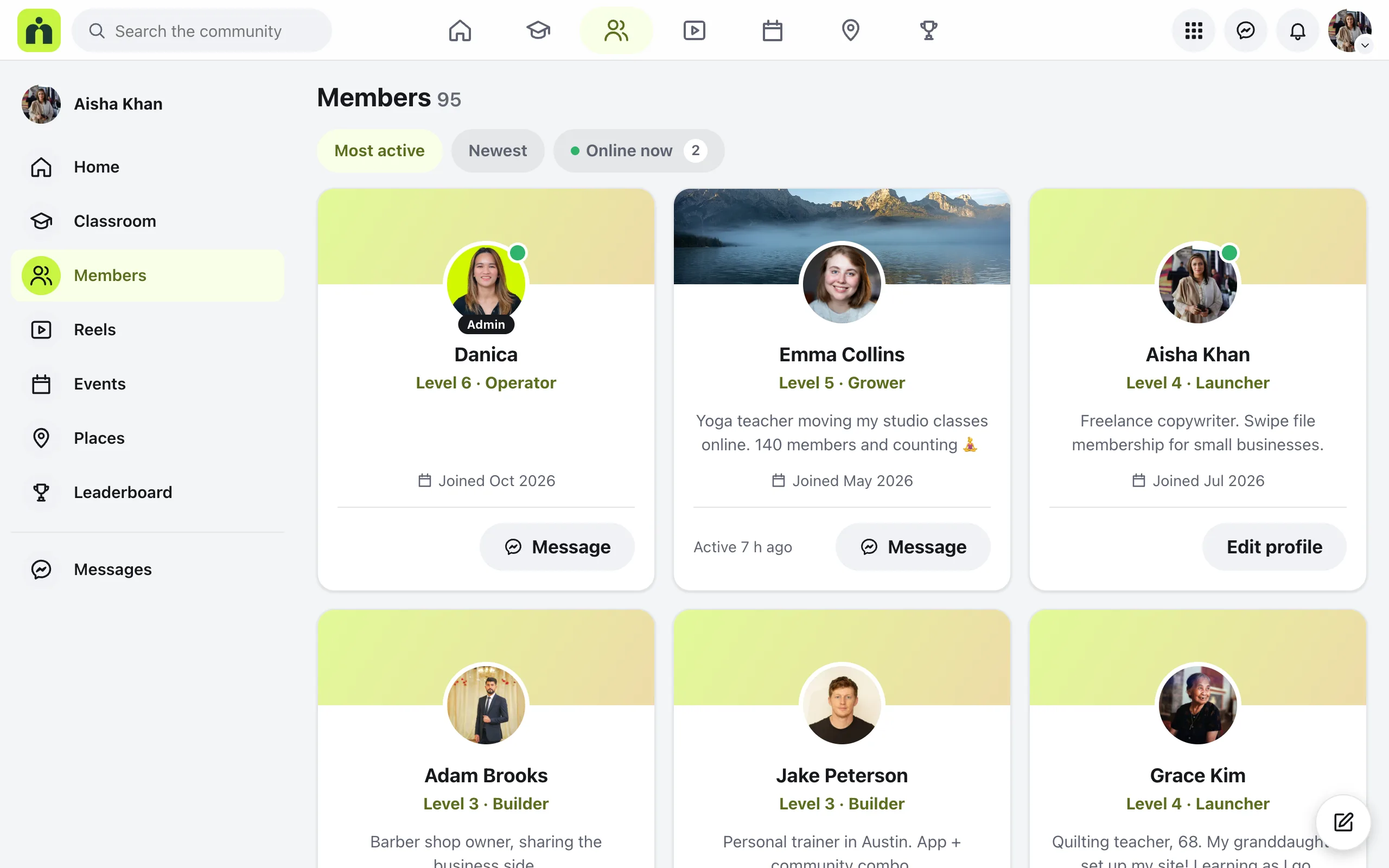
Open Members from the menu. Each member has a card with their cover, photo, name, level, bio, where they live and when they joined, plus a Message button. More members load as you scroll.
Sort with Most active or Newest. Online now shows who’s using the community right now, with a green dot on their photo.
Privacy and blocking
Privacy, in the menu under a member’s photo, has one choice: Show when I’m online. It’s fair both ways: hide yours and you don’t see anyone else’s.
To block someone, open their profile and use the menu beside the buttons. Blocked people don’t see each other’s posts, comments or stories and can’t message each other, and they aren’t told. Edit profile lists Blocked people, with Unblock beside each one.
As the owner, you also see Moderate on a profile, to mute or ban someone. That’s covered in Moderate posts and members.
Questions
Can members hide that they’re online?
Yes. In the menu under their photo, Privacy has Show when I’m online. Turned off, nobody sees their green dot, and they don’t see other members’ dots either. You can also switch Show who’s online off for everyone in Settings, then Features.
How do members find someone by name?
Type the name in Search the community at the top. Members are one of the kinds of results, next to posts, courses and lessons.
Can I hide the cover pictures on member cards?
Yes. In Settings, then Features, under Members directory, switch off Cover photos on member cards and press Save changes.
Stuck, or something not right? See Troubleshooting, or email us and we’ll help.