Your websiteAll docs
Let members log in with an email link
Members who forget their password can ask for a link by email instead. The link works once, for 15 minutes.
How members use it
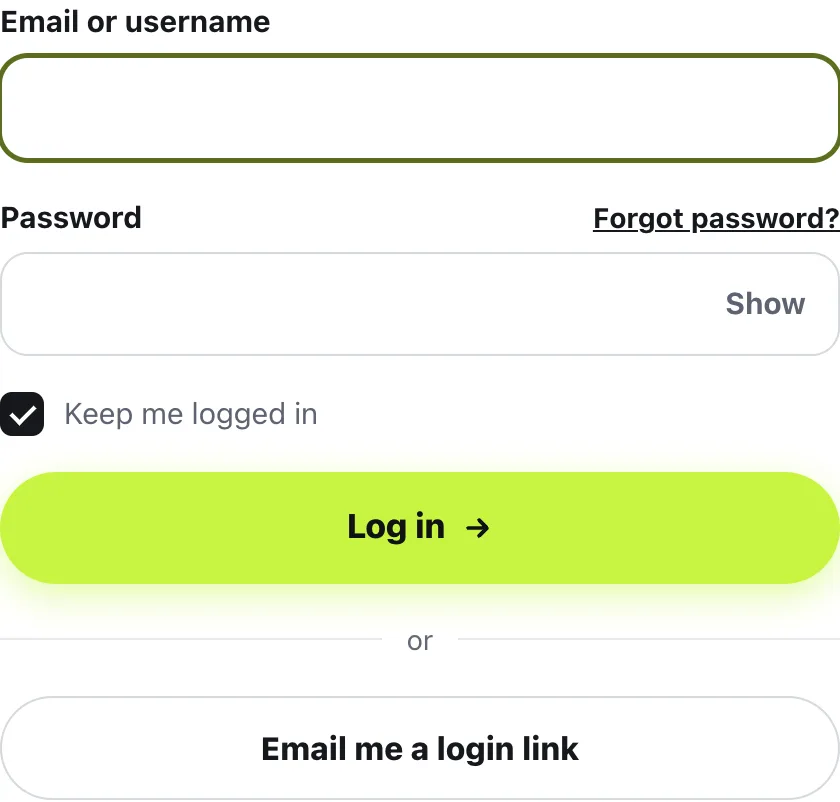
Under the login form, below or, there’s a button that says Email me a login link.
- 1
Type their email or username
On the login page, in Email or username. No password needed.
- 2
Press Email me a login link
The page says Check your email, with Send it again in case the email doesn’t come.
- 3
Open the email
It’s called Your login link for, then your community’s name. Members press Log me in.
- 4
Press Log in
The link opens a page that says Log in as, then their email. One more press and they’re in the community.
The link works once, for 15 minutes. It also works on another device, so a member can open the email on their phone and log in there.
Switch it on or off
It’s on when you install the plugin. To change it, open Settings in your community, then Joining & logging in, and use the “Email me a login link” switch. Then press Save changes.

Switched off, the button leaves the login page, and members log in with their password as usual. The switch only shows while the community’s own login pages are on.
Questions
Can I log in with a link too?
No. People who run or edit the site, like admins and editors, always use their password. The link is for members. Members who are banned can’t use it either.
Can an email scanner use up the link?
No. Opening the link only shows a Log in button. The member is logged in when they press it, so a scanner that opens every link can’t use it.
The link says it has expired. Now what?
Links work once, for 15 minutes. The page that says so has a box for the email: type it and press Send me a new link.
Does it tell strangers who is a member?
No. The page answers the same way whether or not the email has an account, so nobody can use it to find out who’s a member.
Stuck, or something not right? See Troubleshooting, or email us and we’ll help.