Feed, reels and storiesAll docs
Turn on GIFs
Paste a free GIPHY key, and members get a GIF button in posts, comments and chats.
Add your GIPHY key
- 1
Open Community settings, then GIFs
Community settings is in the menu on the left of your community.
- 2
Get a free key
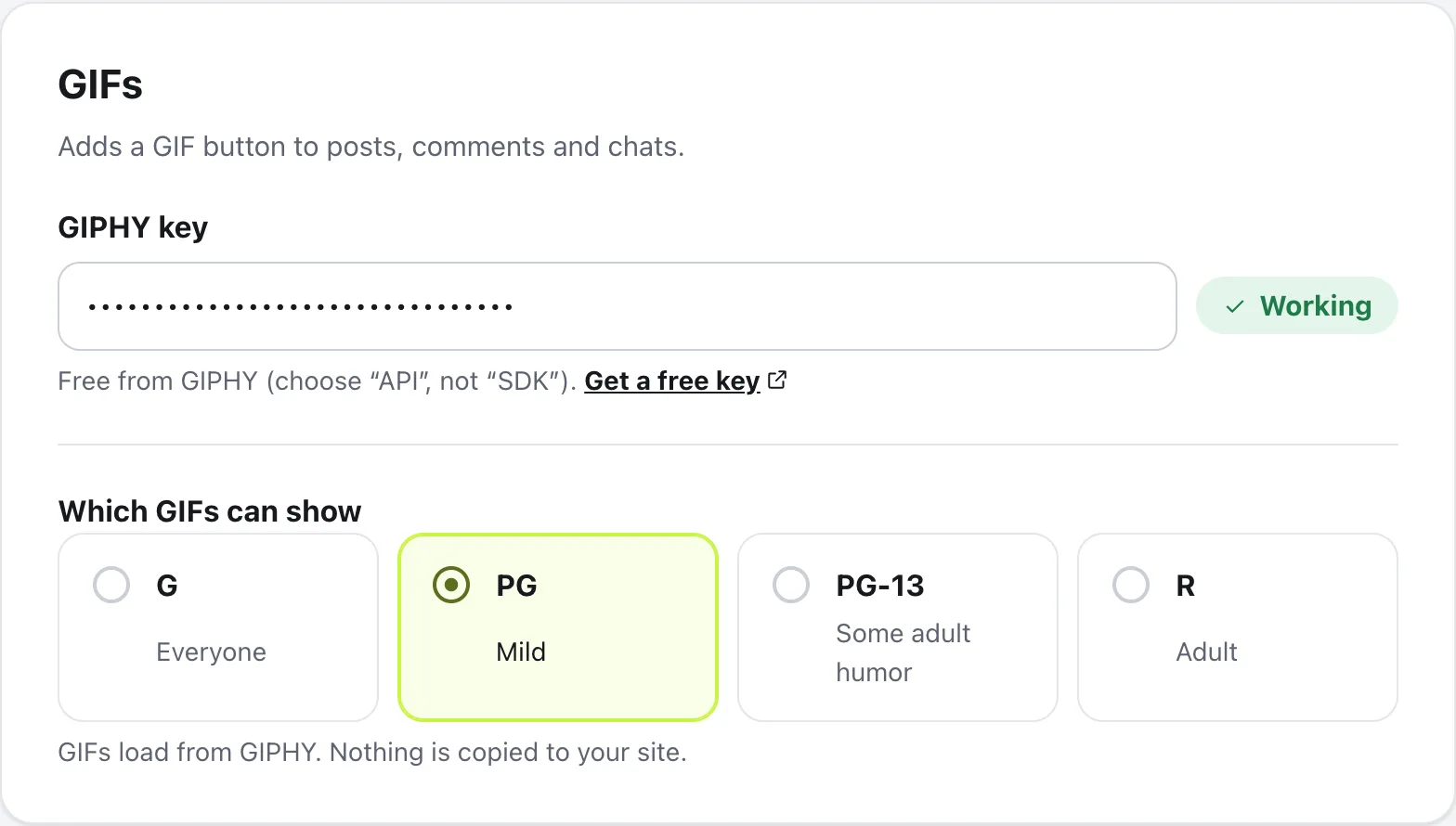
Press Get a free key under the box. It opens your GIPHY dashboard, where you make a key. Choose API, not SDK.
- 3
Paste it into GIPHY key
The box checks it straight away and shows Working once GIPHY accepts it.
- 4
Choose which GIFs can show
G for everyone, PG for mild, PG-13 for some adult humour, or R for adult.
- 5
Press Save changes
The GIF button appears for everyone.
Using GIFs
Once the key works, a GIF button shows in Create post, under comments and in chats. Pressing it opens Choose a GIF, with trending GIFs first. Type in Search GIPHY to find one, then tap it to add it.
GIFs play as light, looping video, only while they’re on screen. Members who have reduce motion turned on press a GIF to play it.
A post with a poll can’t have a GIF. To turn GIFs off again, clear the key and press Save changes.
Questions
Does the GIPHY key cost anything?
No. GIPHY gives API keys for free. When you make one on their site, choose API, not SDK.
Are GIFs copied to my site?
No. GIFs load from GIPHY. Your site only keeps the address of each GIF someone picks, never a copy.
What does GIPHY see?
When a member opens the GIF picker, their browser asks GIPHY for trending GIFs, or for the words they search, using your site’s key.
The key says Not working. What now?
Copy it again from your GIPHY dashboard, with no spaces, and paste it in. Until it works, members can still upload their own GIF files.
Stuck, or something not right? See Troubleshooting, or email us and we’ll help.