Your websiteAll docs
Your Log in and Join pages
Members log in and join on pages led by you: your photo, your name and one line about what they get. You change them in Settings and watch a preview as you type.
What members see
The login page has your photo and your line on one side, and the form on the other: Email or username, Password with Show, Keep me logged in and Forgot password?. Below it, Email me a login link lets members in without a password.
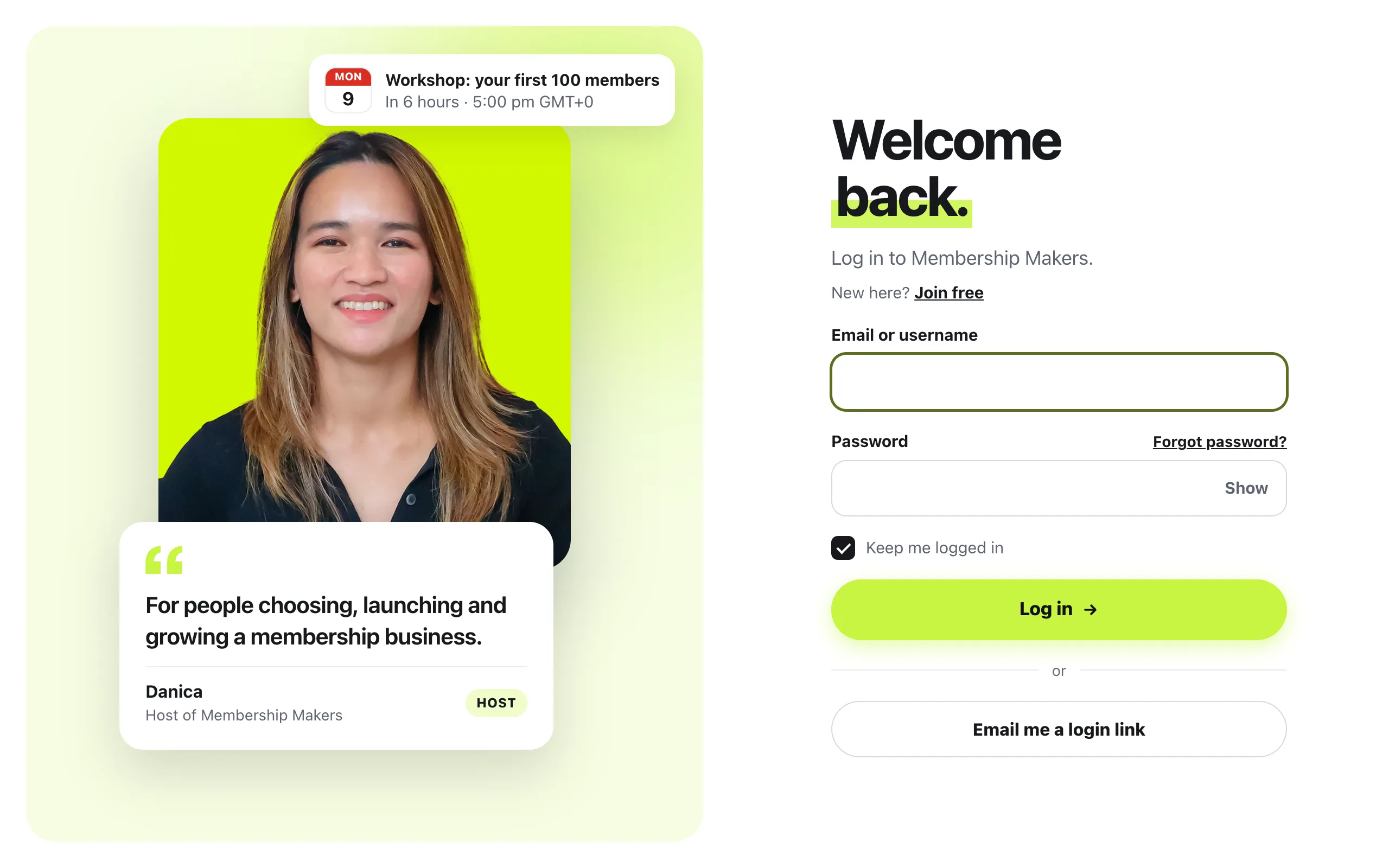
Join asks for three things: first name, email and a password. If you set a minimum age, it also asks for a birth month and year, which isn’t saved. With Show what’s happening on, Log in shows the next live call, and Join shows a few members’ faces once there are some.
Change the look
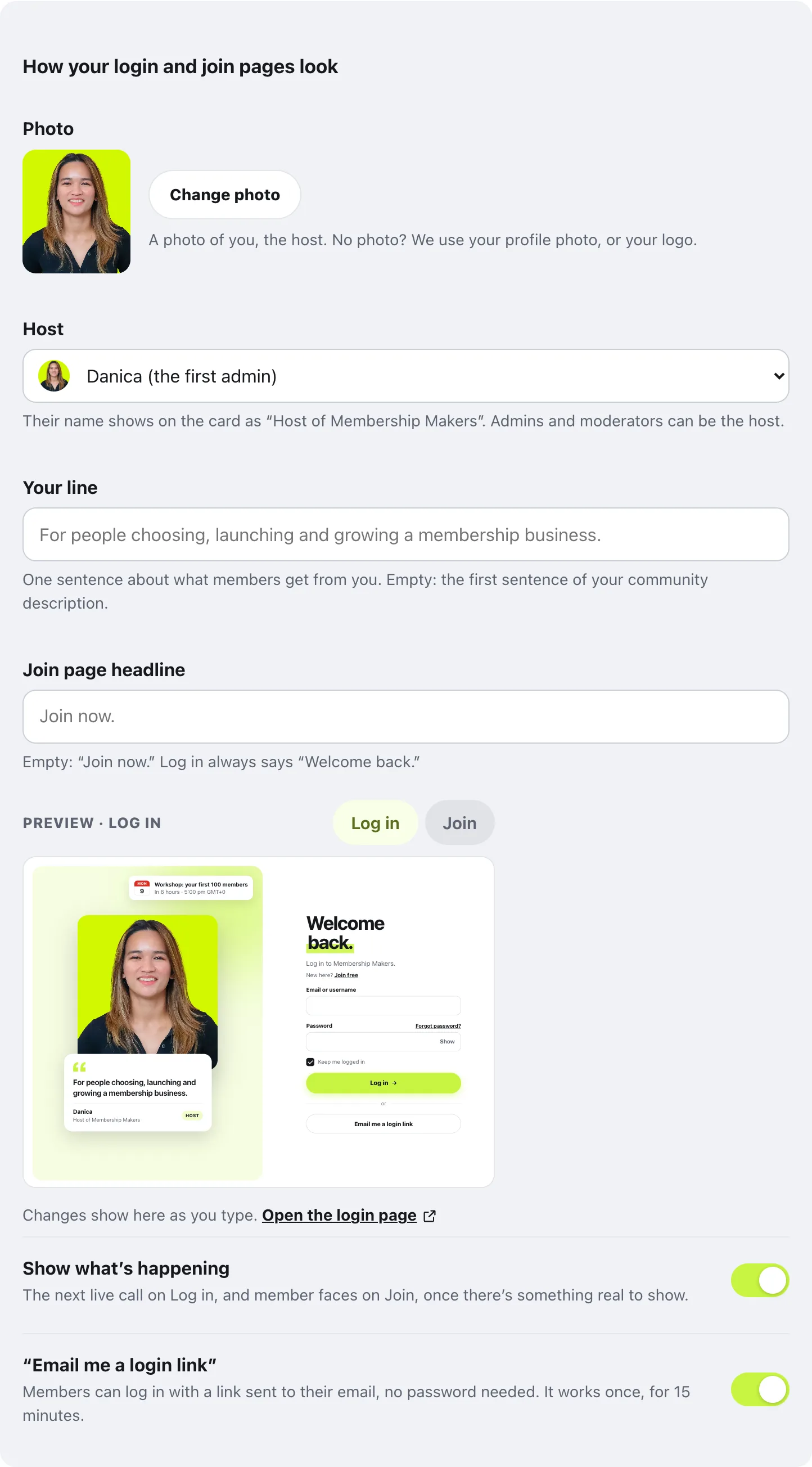
In your community, open Settings, then Joining & logging in. Under How your login and join pages look you’ll find four things.
Photo
A photo of you, the host. Press Change photo to upload one. Use my profile photo goes back to your profile picture.
Host
Whose name shows on the card, as Host of and your community’s name. Any admin or moderator can be the host. It starts as the first admin.
Your line
One sentence about what members get from you. Left empty, it uses the first sentence of your community description.
Join page headline
The big words on Join. Left empty, it says Join now. Log in always says Welcome back.
Beside them, the preview shows the real page with your changes. Use Log in and Join above it to switch pages, or press Open the login page to see it full size. When you’re happy, press Save changes at the bottom of Settings.
How people join
At the top of the same section, How people join has three answers.
- Free account, right here: anyone can create an account on your Join page. Same as WordPress’s Anyone can register
- Through my own sign-up or checkout page: the join button goes to your membership plugin, checkout or sales page
- Invite only: no join button. You add people yourself in WordPress
With a free account you can also pick a Minimum age (13 or older is the default) and add your Terms page, which shows with your Privacy Policy when people sign up.
Lower down, Where members land decides what signed-in members see when they open your home page. After logging in, members go to the feed and admins to the dashboard.
Questions
Where are the pages?
At your community’s address with /login on the end, like example.com/community/login. Join, Forgot password and the email login link have their own pages next to it. Logging out brings members back to Log in.
I don’t have a photo yet. What shows?
Your profile photo. With no profile photo either, your logo shows, so the page works on day one.
Does the normal WordPress login still work?
Yes. wp-login.php keeps working. If a security plugin needs WordPress’s own login screen, switch off Our login pages in Settings, then Joining & logging in.
My community is paid. Where does Join go?
Under How people join, choose Through my own sign-up or checkout page and paste the address of your checkout or sales page. You can change the button text too, like Become a member.
Stuck, or something not right? See Troubleshooting, or email us and we’ll help.