Get startedAll docs
Finish setting up
Six short steps, about ten minutes in all. Each one ticks itself when it’s done.
Where to find the list
The list is in two places, and they stay in step:
In wp-admin, Community, then Overview, opens with Welcome! Let’s get your community ready, the six steps and a button on each one.
In the community, Home shows a Finish setting up card, with how many are done and “only you can see this”. Press a row, or Continue for the next one.
The six steps
- 1
Name, logo and color
Opens Community settings at Your community. Set the name, upload a logo (a square image works best), pick a Main color, then press Save changes.
- 2
Choose how emails are sent
Opens Settings › Email. The guide marks it Do this before inviting anyone, so sign-up and password emails arrive. It’s ticked once you pick Resend or another service, or a test email gets through. See Send emails reliably.
- 3
Save your safety key
Keeps private messages readable if your site ever moves to a new host. More on this below.
- 4
Add your first course
Optional. Skip it if you only want a community for now. See Create a course.
- 5
Write a welcome post
Opens a new post on Home. It’s the first thing new members see, so say hello and what to expect.
- 6
Invite your members
Opens your join link and a message you can paste. See Invite your first members.
Your numbers (members, posts, activity) show on the Overview once people join.
Save your safety key
The step opens Community settings, then Address & safety key. Under Keep a copy, press Copy key and paste it into your password manager, or press Download key. Either one is enough. Then press Done, I’ve saved it.
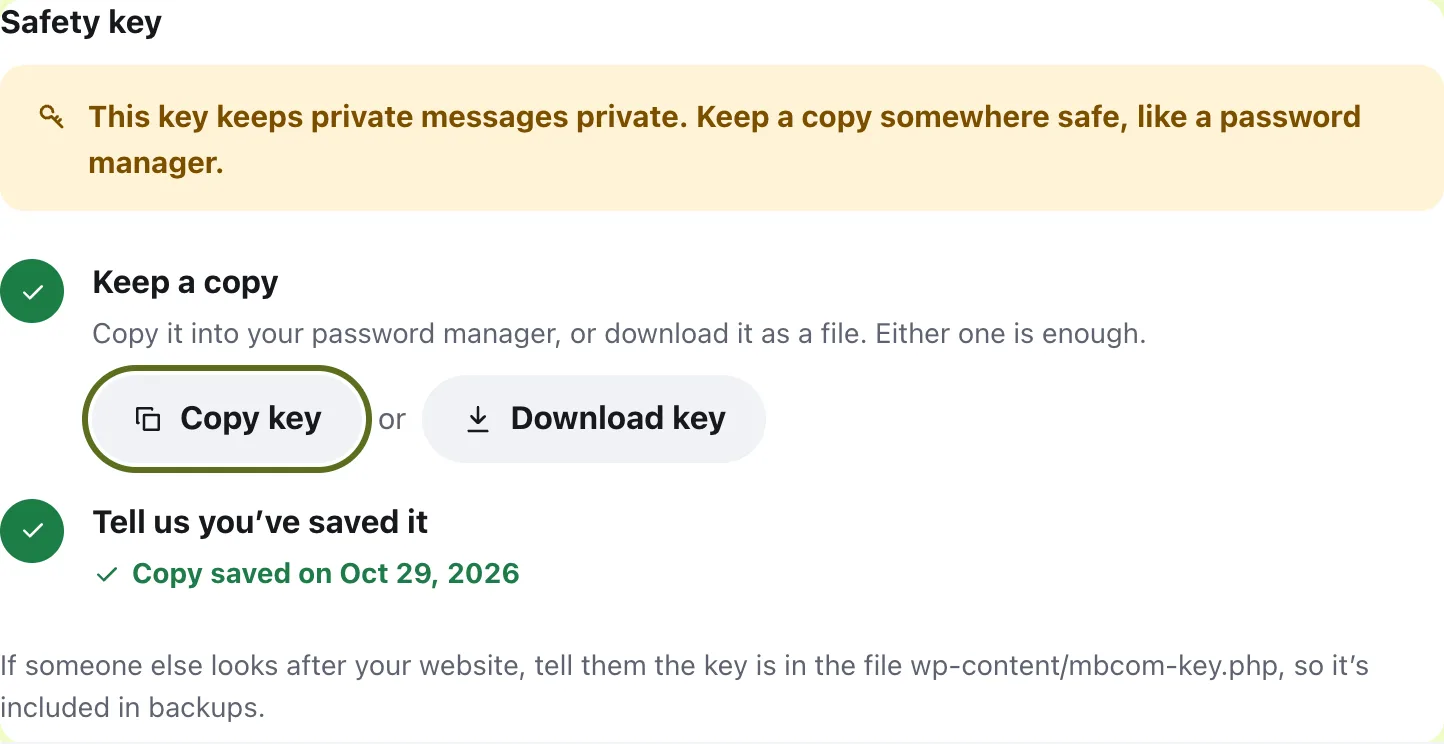
Keep it private, like a password. If someone else looks after your website, tell them the key is in the file wp-content/mbcom-key.php, so it’s included in backups.
Questions
Can members see the checklist?
No. Finish setting up shows only to admins. New members get their own short welcome list instead, with Say hello, Start a course and Add a photo.
Do I have to add a course?
No. Add your first course is marked Optional. The list counts as finished once the other five steps are done.
How do I make the checklist go away?
Finish the five steps that aren’t optional. Each one is ticked by itself when it’s done, and then the list hides, on Home and in wp-admin.
What is the safety key for?
Private messages are stored encrypted, and the key unlocks them. If your site ever moves to a new host without the key file, a saved copy lets you paste it back so old messages can be read again.
Stuck, or something not right? See Troubleshooting, or email us and we’ll help.