ClassroomAll docs
Choose who can open a course
Open a course to every member, reward active members with it, or keep it for people with a membership.
Pick who gets in
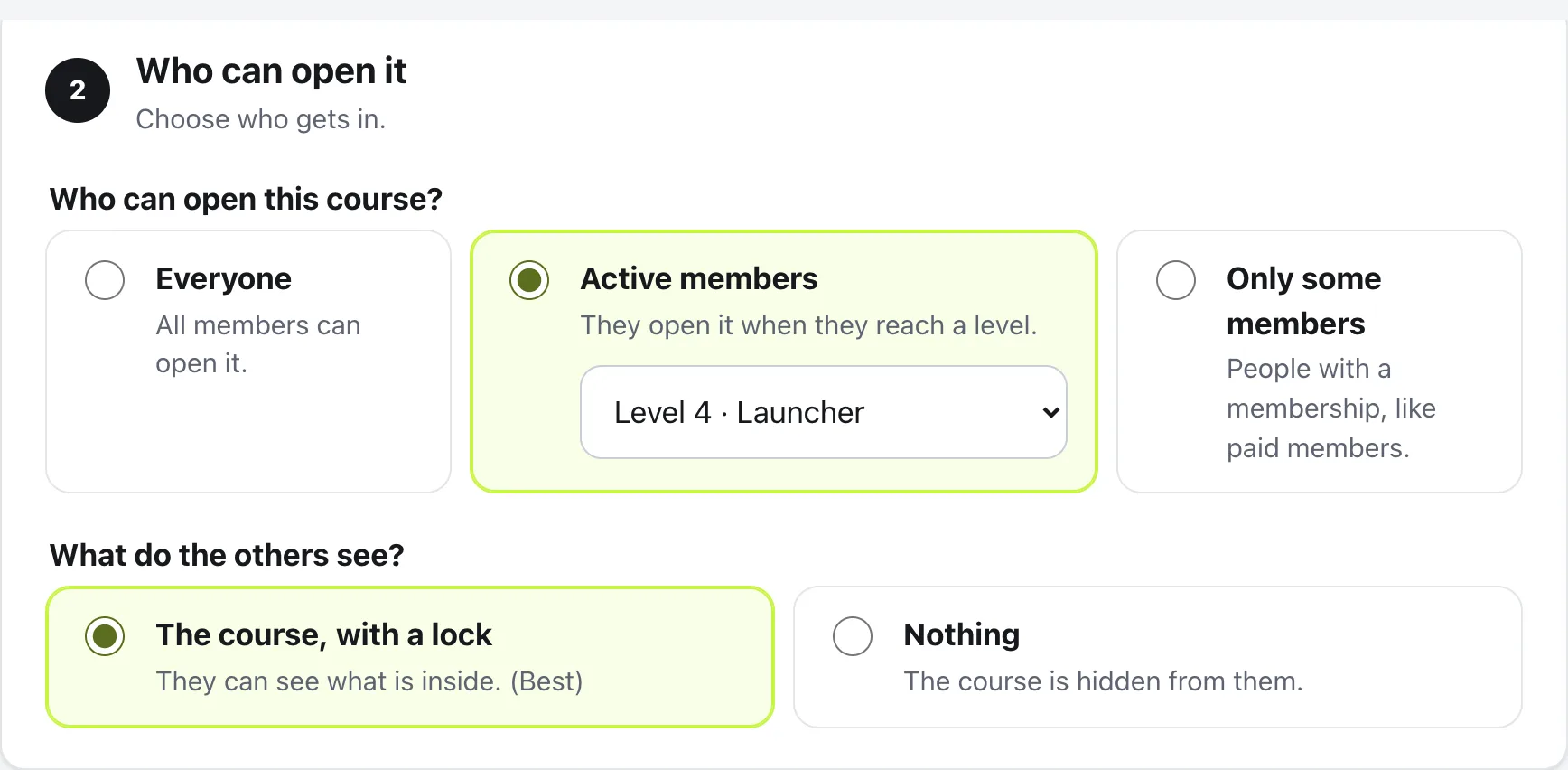
In the Classroom, press Edit on the course, then open Course settings. The second group, Who can open it, asks Who can open this course?
Everyone
All members can open it.
Active members
They open it when they reach a level. Pick the level from the list that appears, like Level 4. The list uses your own level names.
Only some members
People with a membership, like paid members. Pick one or more under Which memberships open it, with Add a membership.
Everything saves by itself, and you can change it any time.
Choose what everyone else sees
Unless the course is for everyone, a second question appears: What do the others see?
- The course, with a lock: they can see what’s inside, and the course card shows what opens it, like Level 3+ or the membership’s name. This is marked Best, because people can see what they’re working toward.
- Nothing: the course is hidden from them.
For a membership course, the builder also shows the button members see on the locked course, like Get access for $49/month. A membership without a button is invite only, and members see “Ask an admin for access”.
Make a membership
Memberships live in Community settings, under Memberships. If you have none yet, the course builder links you there with Create a membership.
Press New membership, give it a name members will see on locked courses, and pick Which courses does it open? Then choose how people get it:
- People you added: press Add or remove people and search by name.
- Joins automatically with a role: use this when your membership or shop plugin gives buyers a WordPress role. Access follows the role, so it ends when their membership does.
Under How people get it, set the button text, the price and how often they pay. Payment happens on your own checkout. Deleting a membership keeps its courses; members only lose the courses that membership alone opened.
Questions
Can my membership plugin open courses for me?
Yes. In Settings, then Memberships, add a role under Joins automatically with a role. When your membership or shop plugin gives a buyer that WordPress role, they get the membership, and the courses it opens.
What happens if I pick Only some members but no membership?
The builder asks you to pick at least one. Until you do, only you and your moderators can open the course.
Can one membership open several courses?
Yes. A membership can open as many courses as you like, and its button text and price are set once for all of them.
Do admins and moderators need a membership?
No. Admins and moderators can always open every course.
Stuck, or something not right? See Troubleshooting, or email us and we’ll help.