Running your communityAll docs
Community settings
One page for your community’s name, look, features and rules. Changes affect the whole community.
Open Community settings
In the community, press your photo at the top right and choose Community settings. On a computer, it’s also in the left column, under Messages. On a phone, tap Menu in the bottom bar.
From wp-admin, choose Community, then Settings ↗. It opens the same page in a new tab.
The sections are listed down the left. Change anything, and a bar appears at the bottom: press Save changes, or Discard to undo.
Name, logo and color
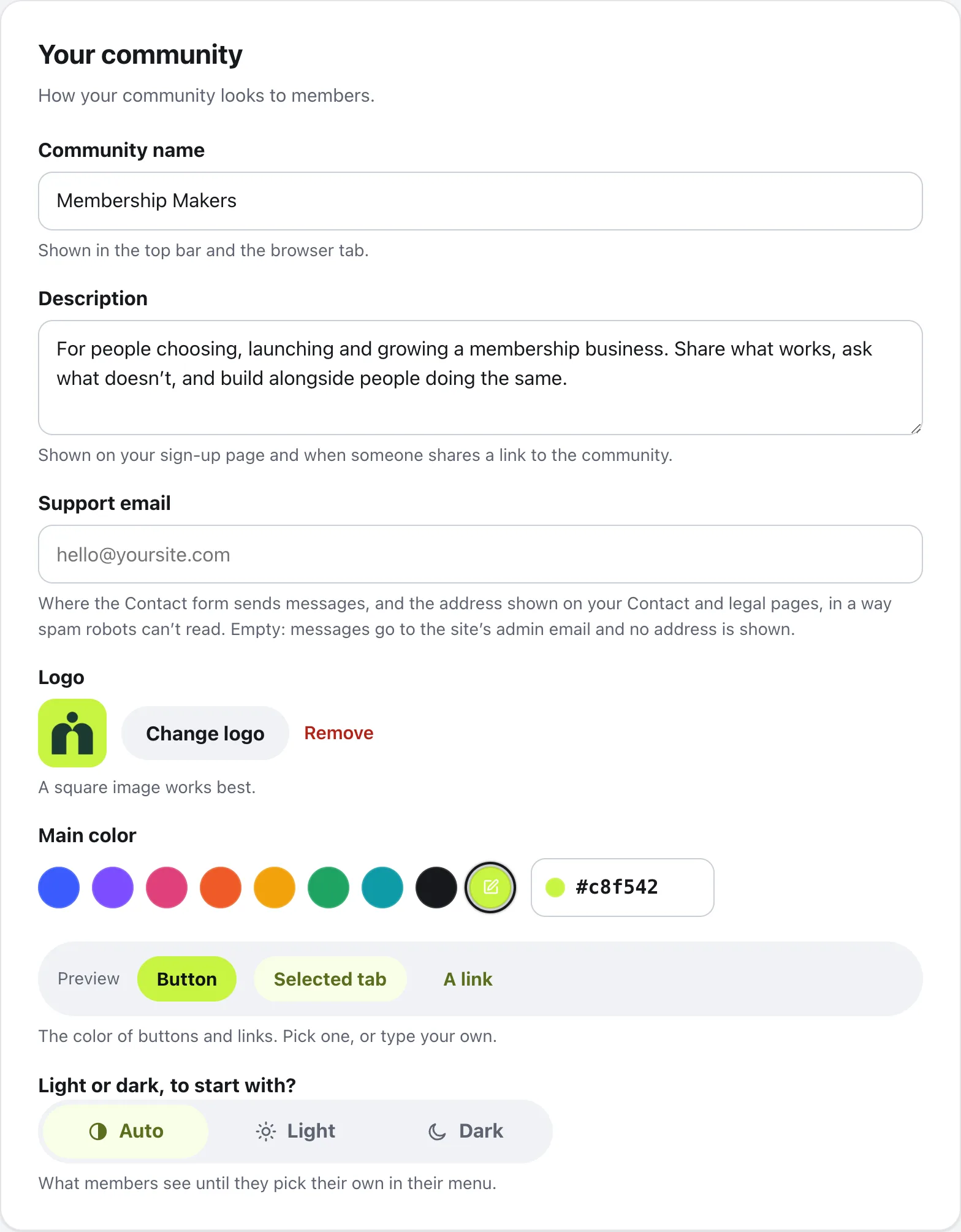
The first section, Your community, is how your community looks to members.
Community name
Shown in the top bar and the browser tab.
Description
A sentence or two about what the community is for. It shows on your sign-up page and when someone shares a link to the community.
Logo
Press Upload a logo, or Change logo. A square image works best. It’s also the icon members get when they add the community to their phone.
Main color
The color of buttons and links. Pick a circle or type your own color. The Preview row shows a button, a selected tab and a link in it.
Light or dark, to start with?
Auto, Light or Dark. It’s what members see until they pick their own in their menu.
Turn features on or off
In Features, each part of the community has its own switch: Classroom, Messages, Show who’s online, Stories, Polls, Reels, Leaderboard, Events, Places and Search. Places is off until you turn it on.
Turning one off deletes nothing. Further down, smaller switches choose what course pages show, like the time for each lesson or questions under lessons, and whether member cards show cover photos.
The other sections
Main website
Starter pages for the rest of your site: Home, Pricing, About and more.
Joining & logging in
How people join, your login and join pages, and where members land.
How emails are sent, with a test email. See Send emails reliably.
Topics
Subjects members filter Home by.
Who can do what
Moderators, and who can write posts and send messages.
Memberships
Who can open locked courses.
Points & levels, Video and GIFs
Level names and points, where videos are stored, and a GIPHY key for GIFs.
Import
Bring members, posts and courses from another plugin or a spreadsheet.
News from MemBuild
Hear about new features, and choose whether to share usage.
Address & safety key
The community’s address, your safety key, and what happens when the plugin is removed.
Questions
Is there a settings page in wp-admin too?
Community, then Settings in wp-admin opens the same Community settings, in the community, in a new tab. So does the Settings link under the plugin’s name on the Plugins screen. There’s one place for settings, not two.
Does turning a feature off delete anything?
No. Turning one off hides it from members and deletes nothing. Turn it back on and everything is where it was.
Can moderators change settings?
No. Community settings is only for admins. Moderators get Moderation in their menu instead.
I left Settings without saving. Are my changes lost?
The page asks first: Leave without saving? If you leave anyway, those changes are lost, so press Save changes before you go.
Stuck, or something not right? See Troubleshooting, or email us and we’ll help.