Members and leaderboardAll docs
Points, levels and the leaderboard
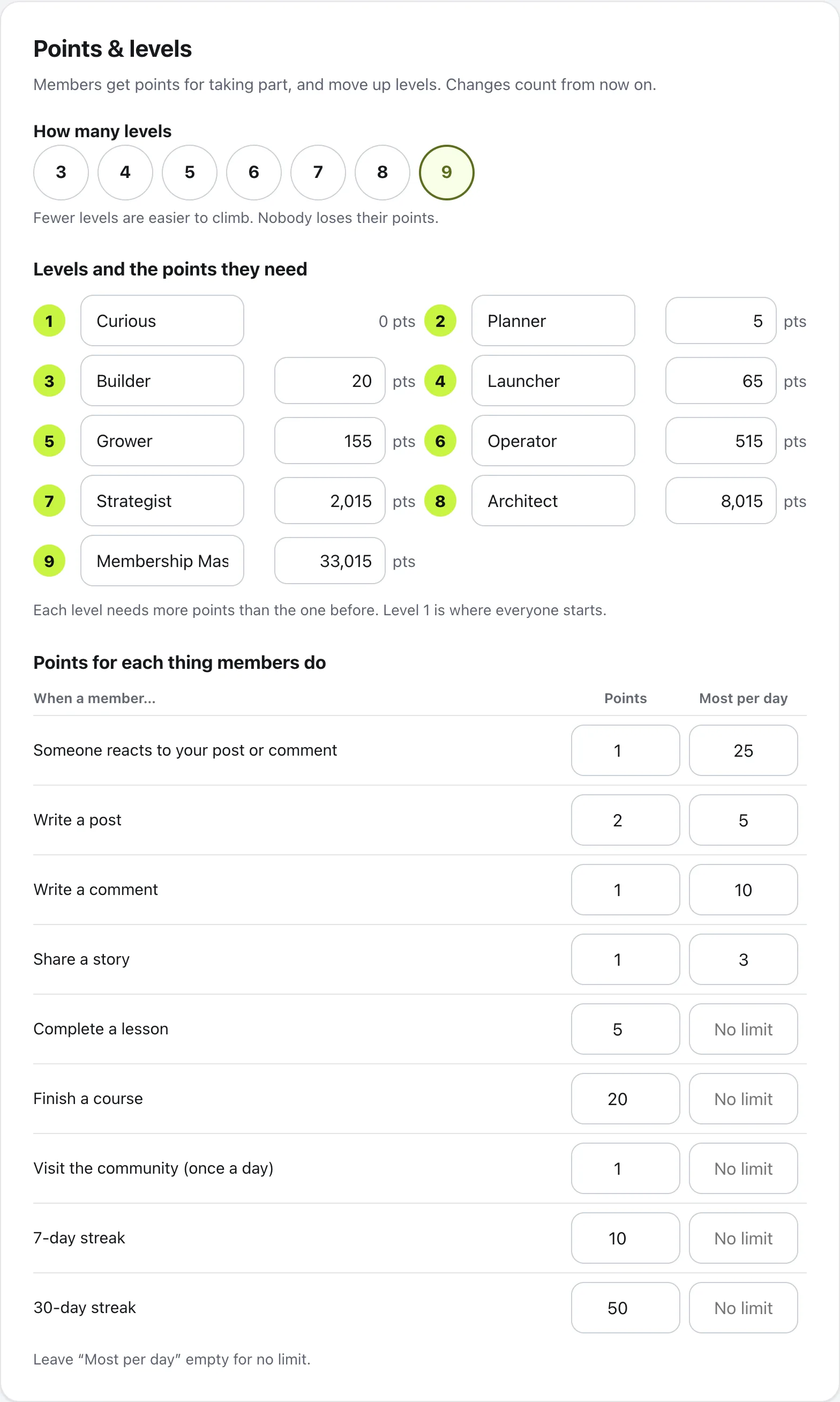
Members get points for taking part and move up levels. You choose how many levels there are, what they’re called, and the points for each thing members do.
Name your levels
- 1
Open Points & levels
In your community, open Community settings from the menu and go to Points & levels.
- 2
Choose how many levels
Under How many levels, pick a number from 3 to 9. Picking one fills in suggested points for each level.
- 3
Name them
Give each level a name, like Curious, Builder or Launcher. Leave a box empty and it’s called Level 1, Level 2 and so on. Level 1 is where everyone starts, at 0 points.
- 4
Set the points each level needs
Each level needs more points than the one before. Use suggested points puts the suggested numbers back. Press Save changes at the bottom.
Choose the points for each action
Under Points for each thing members do, each row has Points and Most per day. To start with, it’s:
- Write a post: 2 points, up to 5 times a day
- Write a comment: 1 point, up to 10 times a day
- Someone reacts to your post or comment: 1 point, up to 25 a day
- Share a story: 1 point, up to 3 a day
- Complete a lesson: 5 points. Finish a course: 20 points
- Visit the community (once a day): 1 point, plus 10 for a 7-day streak and 50 for a 30-day streak
Change any number, then press Save changes. If a lesson is marked not done again, its points go too.
The Leaderboard
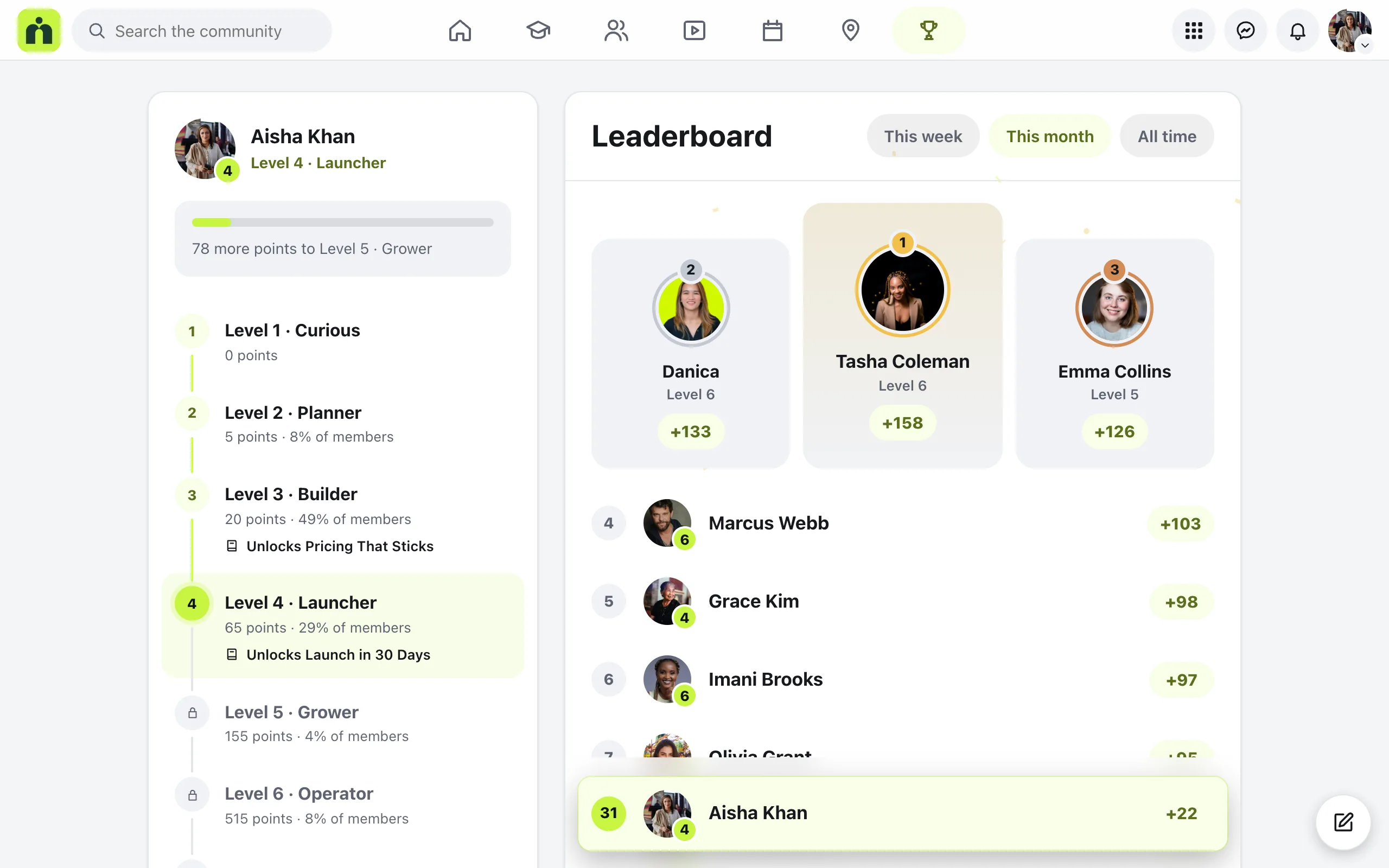
Members open Leaderboard from the menu. The top three stand on a podium, and This week, This month and All time change the period. A member’s own row stays in sight at the bottom, so they always know where they stand.
Beside it, each member sees their level, how many points to the next one, every level with the share of members on it, and any course a level unlocks. A member’s level also shows as a small number on their photo across the community.
Questions
Do members lose points if I change the numbers?
No. Changes count from now on, and nobody loses the points they already have. With fewer levels, members simply land on the level their points reach.
Can a level open a course?
Yes. In a course’s settings, under Who can open it, choose Active members and pick the level. The Leaderboard then shows which course each level unlocks.
Can I turn the Leaderboard off?
Yes, in Settings, then Features. Points and levels still count when it’s off.
Why is there a limit per day?
So nobody climbs by posting the same thing over and over. Leave Most per day empty for no limit.
Stuck, or something not right? See Troubleshooting, or email us and we’ll help.