Running your communityAll docs
Turn on two-step login
After their password, members type a code from their phone or email, so someone who learns a password still can’t get in.
Turn it on
- 1
Open Community settings, then Security
Security is under Safety in the settings menu.
- 2
Turn on Two-step login
The switch works straight away, with no need to save. The first time, it adds the free Two Factor plugin from WordPress.org, which takes a few seconds.
- 3
Check it says On
Under the switch it says On, and which version of Two Factor it uses.
Codes are asked on your community’s own login page. If that page is off, Security shows a note asking you to turn it on under Joining & logging in, so members see your community’s look and not the WordPress login.
Choose who has to use it
Under Who has to use it?, pick one and press Save changes:
- Anyone who wants it. Members turn it on in their account. The easiest choice.
- Required for you and your team. Owners and moderators set it up at their next log in.
- Required for everyone. Every member sets it up at their next log in.
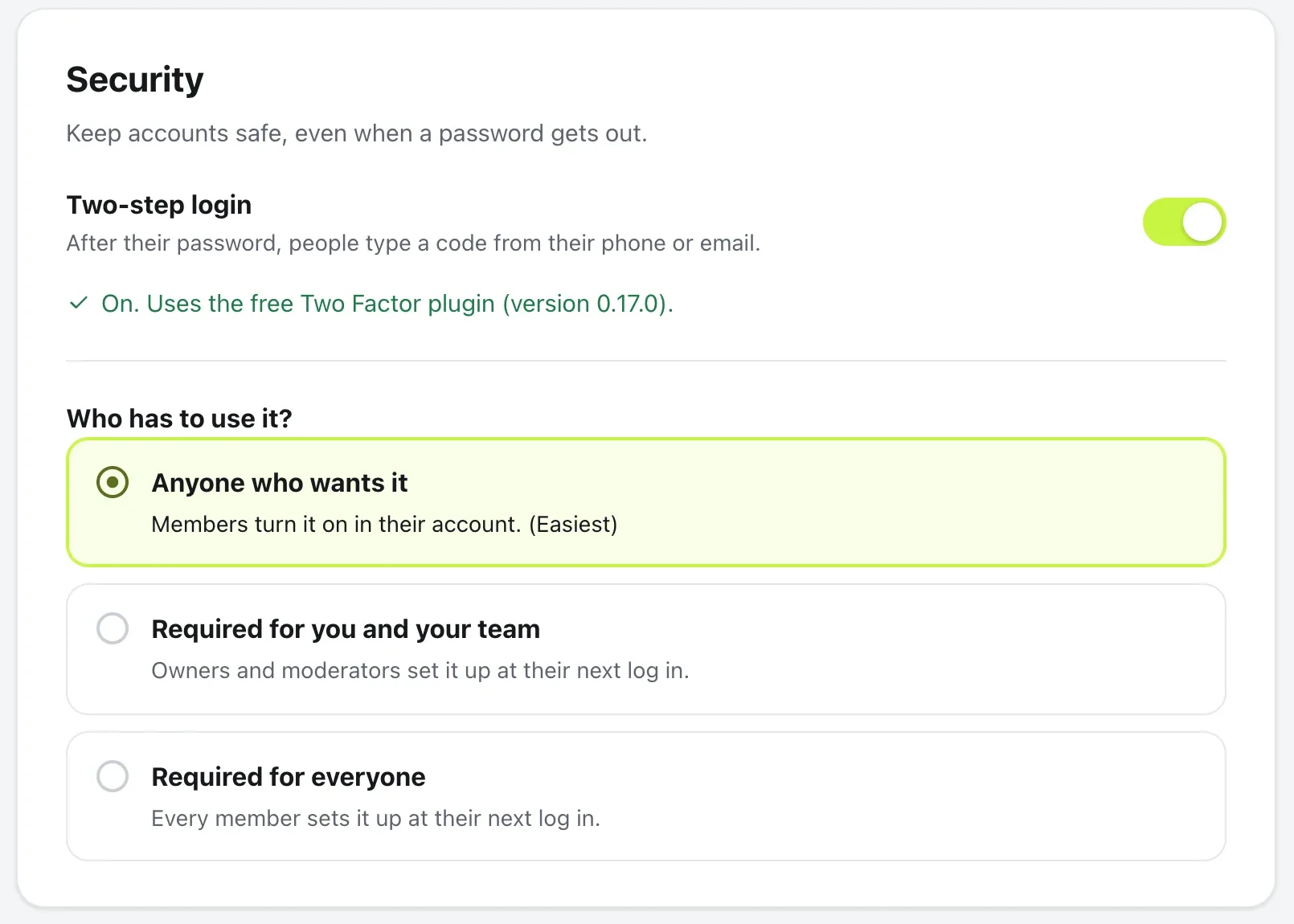
Requiring it for your team is a good start: anyone who can change the community is covered, and members can still choose. When you require it for everyone, a member who loses their phone and their recovery codes needs you to let them back in.
What members see
Members set it up themselves, from their profile. They never see the WordPress dashboard.
- 1
Open Edit profile, then Two-step login
The row shows Off until they set it up. It’s only there while you have two-step login on.
- 2
Pick a way to get the code
Authenticator app: press Set up, scan the picture with the app, and type the 6-digit code it shows. Or turn on Email codes, and a code is emailed each time they log in.
- 3
Make recovery codes
Press Make codes to get 10 codes, each working once. They can download or print them, then press I saved them. These get them in if they lose their phone.
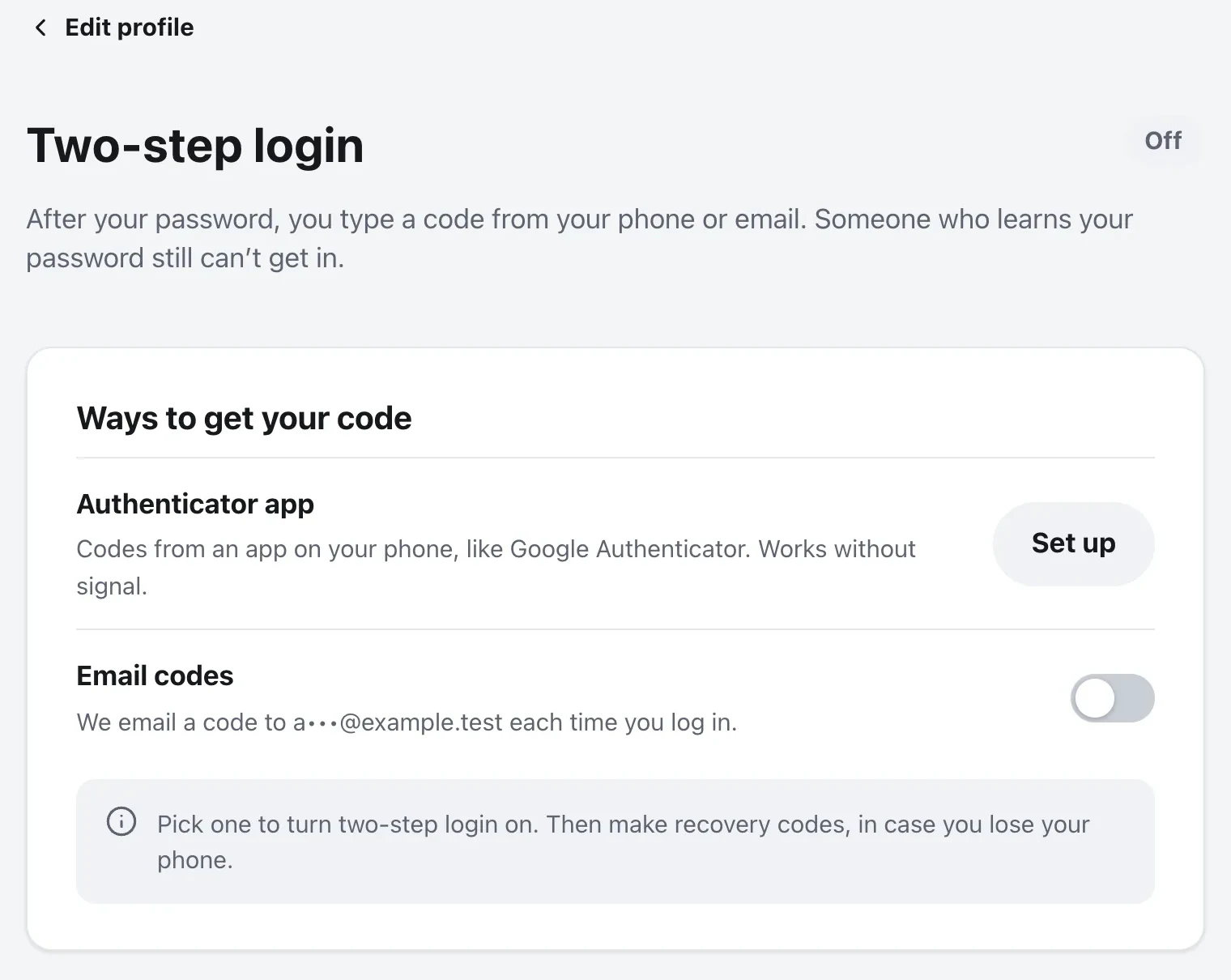
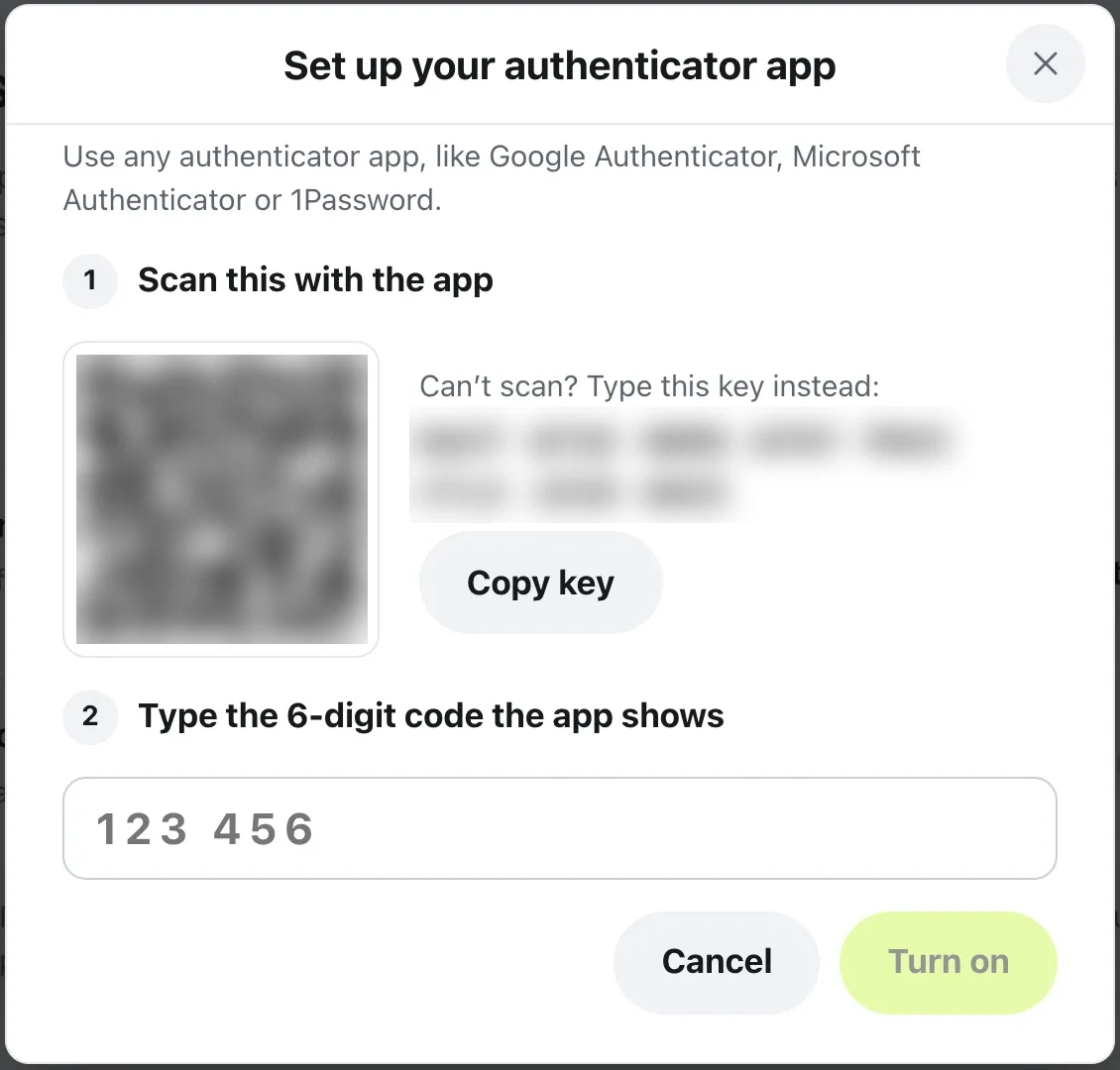
Any authenticator app works, like Google Authenticator, Microsoft Authenticator or 1Password. Once a way is set up, the page says On and the member gets an email saying two-step login is on. Changing these settings later asks them to confirm it’s them with a code first.
Logging in with a code
After their password, or after they open an emailed login link, members get one more step on your community’s login page. With an app, they see One more step and type the 6-digit code it shows. With email, they see Check your email: the code is sent to them and works for 10 minutes, with Send it again if it doesn’t arrive.
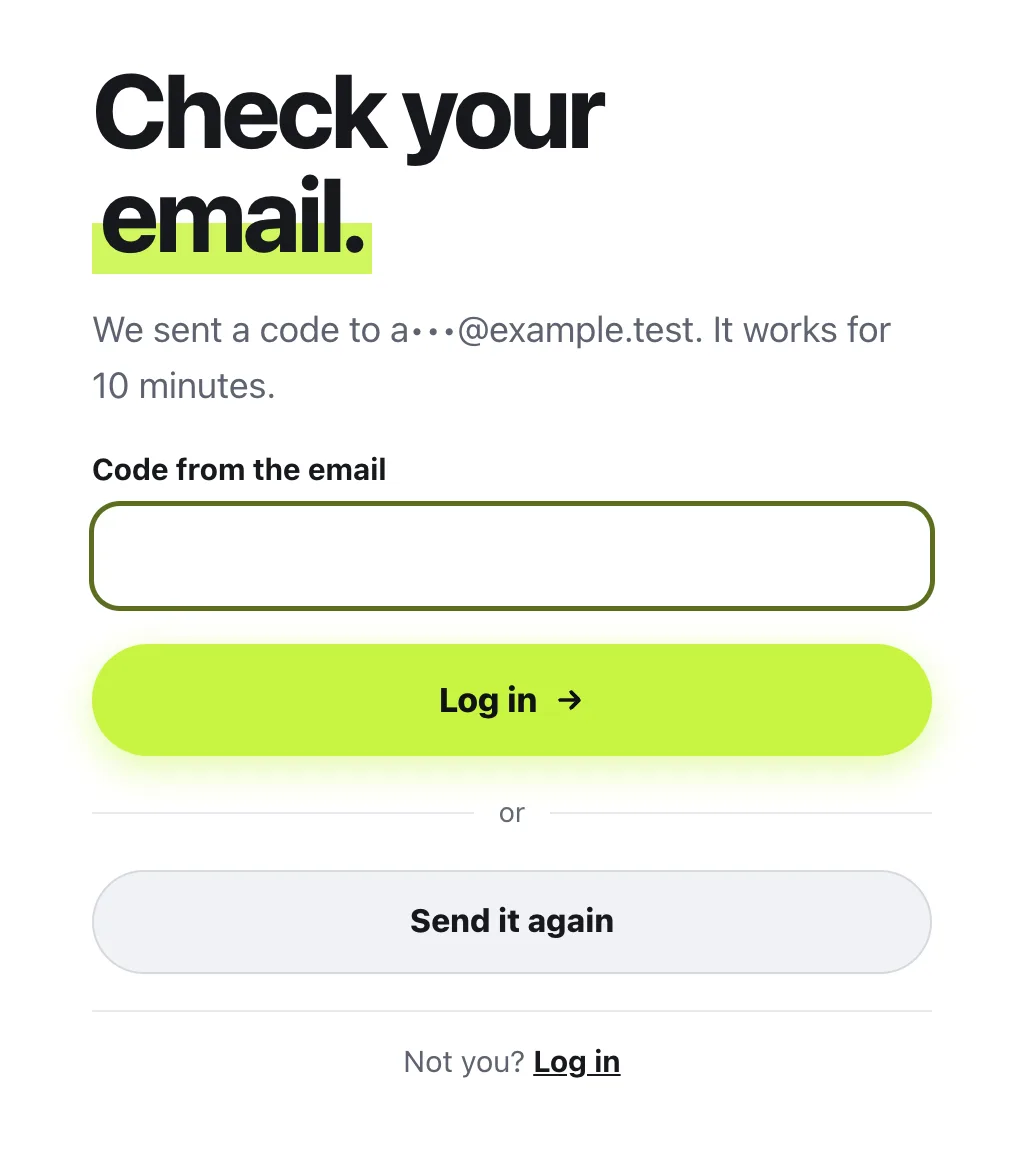
If they set up more than one way, or made recovery codes, links under the box let them switch to their app, have a code emailed, or Use a recovery code.
When you’ve made it required and a member hasn’t set it up yet, they see Protect your account after their password. It explains that your community asks everyone to add a second step, and walks them through the same setup before they go in.
Questions
Does it cost anything?
No. It uses the free Two Factor plugin from WordPress.org, and MemBuild Community adds it for you when you turn the switch on.
A member lost their phone. How do they get in?
They press Use a recovery code on the code screen and type one of the codes they saved. Each code works once. If they have none left, open their user in the WordPress dashboard, turn off their two-factor methods and save. They can then log in with their password and set it up again.
What happens after too many wrong codes?
The code screen asks them to wait a little before trying again. If the wrong codes keep coming, their password is reset for safety and they get an email to choose a new one.
Can members turn it off?
Yes, from the same Two-step login page, unless you chose Required for everyone. Owners and moderators can’t turn it off when you chose Required for you and your team.
What if I turn two-step login off?
Everyone logs in with just their password again. Members’ setups are kept, so if you turn it back on, nobody has to start over.
The switch says it couldn’t add the plugin. What now?
Add it yourself: in the WordPress dashboard open Plugins, then Add New, search for Two Factor by WordPress.org Contributors, press Install Now and then Activate. Come back to Security and the switch will be on.
Stuck, or something not right? See Troubleshooting, or email us and we’ll help.