ClassroomAll docs
Add a quiz to a lesson
Questions at the end of a lesson that members answer before moving on. Choose how many they need to get right.
Add the quiz
Each lesson can have one quiz, at the end. Members answer it after they watch or read the lesson.
- 1
Open the lesson in the course builder
On the Lessons tab, press Edit beside the lesson the quiz goes after.
- 2
Press Add a quiz
It’s in the Quiz box near the bottom of the lesson. The quiz opens in its place, called Quiz: and the lesson’s name.
- 3
Press Add a question
Pick what kind of question it is. Members see the quiz once it has a question.
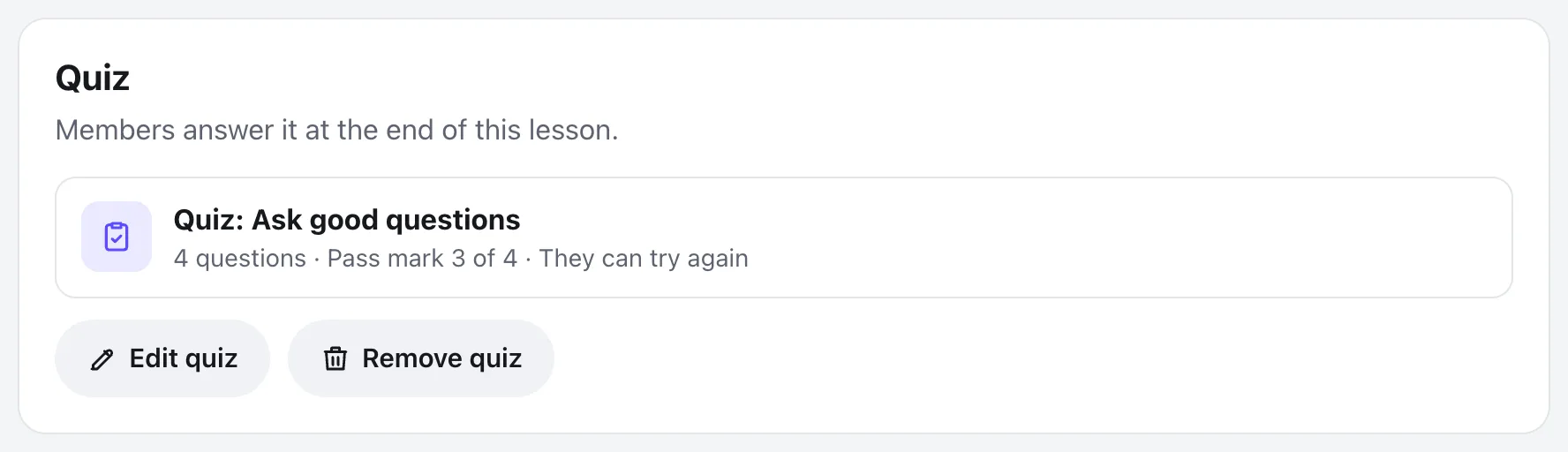
Everything saves by itself. To come back later, press Edit quiz in the same box.
Write the questions
There are three kinds of question, and all three are marked for you.
One right answer
Members pick one. Mark the right one with Make this the right answer.
More than one right answer
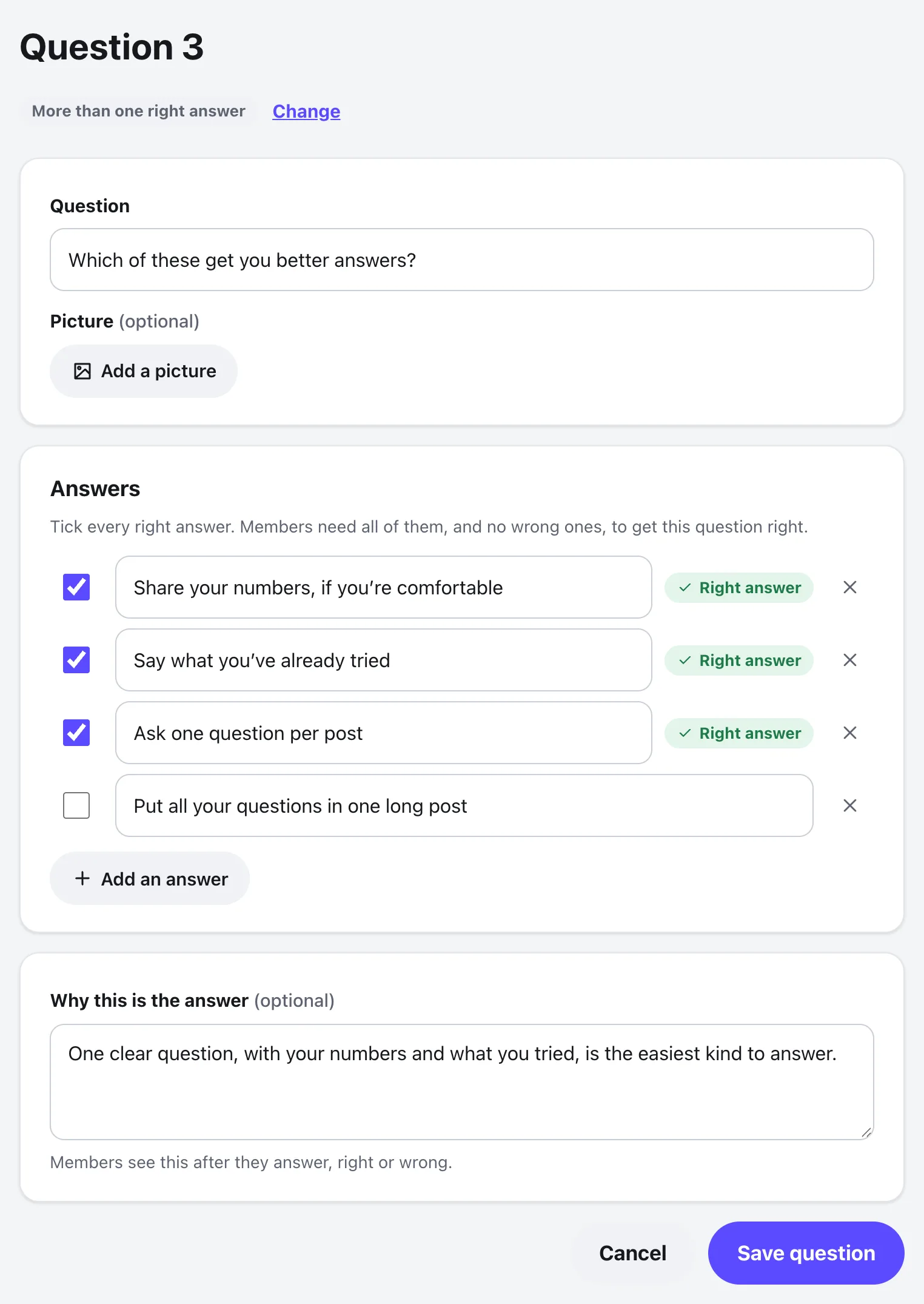
Members tick every right one. To get the question right, they need all of them and no wrong ones.
True or false
The two answers are already filled in. Pick the right one.
Each question has:
- The question itself
- A picture, if it helps (optional)
- The answers. Add an answer gives you more, up to 10
- Why this is the answer (optional). Members see it after they answer, right or wrong
Press Save question when you’re done. If you try to leave with changes, it asks Leave without saving? first.
A quiz can have up to 50 questions. To change the order, drag a question by its handle, or press the handle for Move up and Move down. The ⋯ beside a question has Edit and Delete question.
Choose the pass mark
Under the questions, the quiz asks two more things.
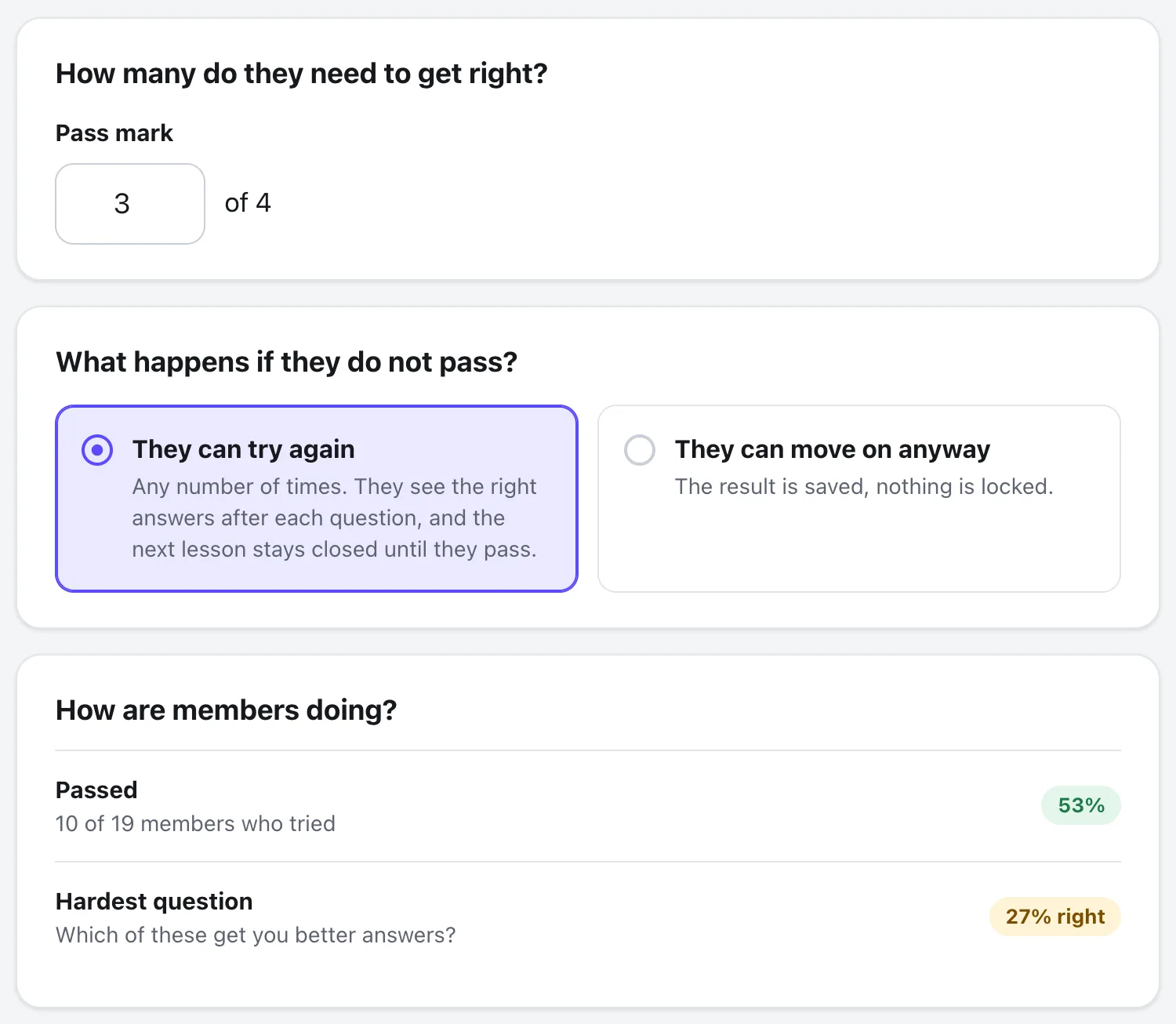
- How many do they need to get right? Type the Pass mark, like 3 of 4.
- What happens if they do not pass? Pick They can try again (any number of times, and the next lesson stays closed until they pass), or They can move on anyway (the result is saved, and nothing is locked).
When a course goes in order, the next lesson waits for the quiz. With They can try again, members pass it first. With They can move on anyway, they just finish it. When members can skip ahead, nothing waits. Either way, the lesson counts as done once they pass, or once they finish the quiz with They can move on anyway.
What members see
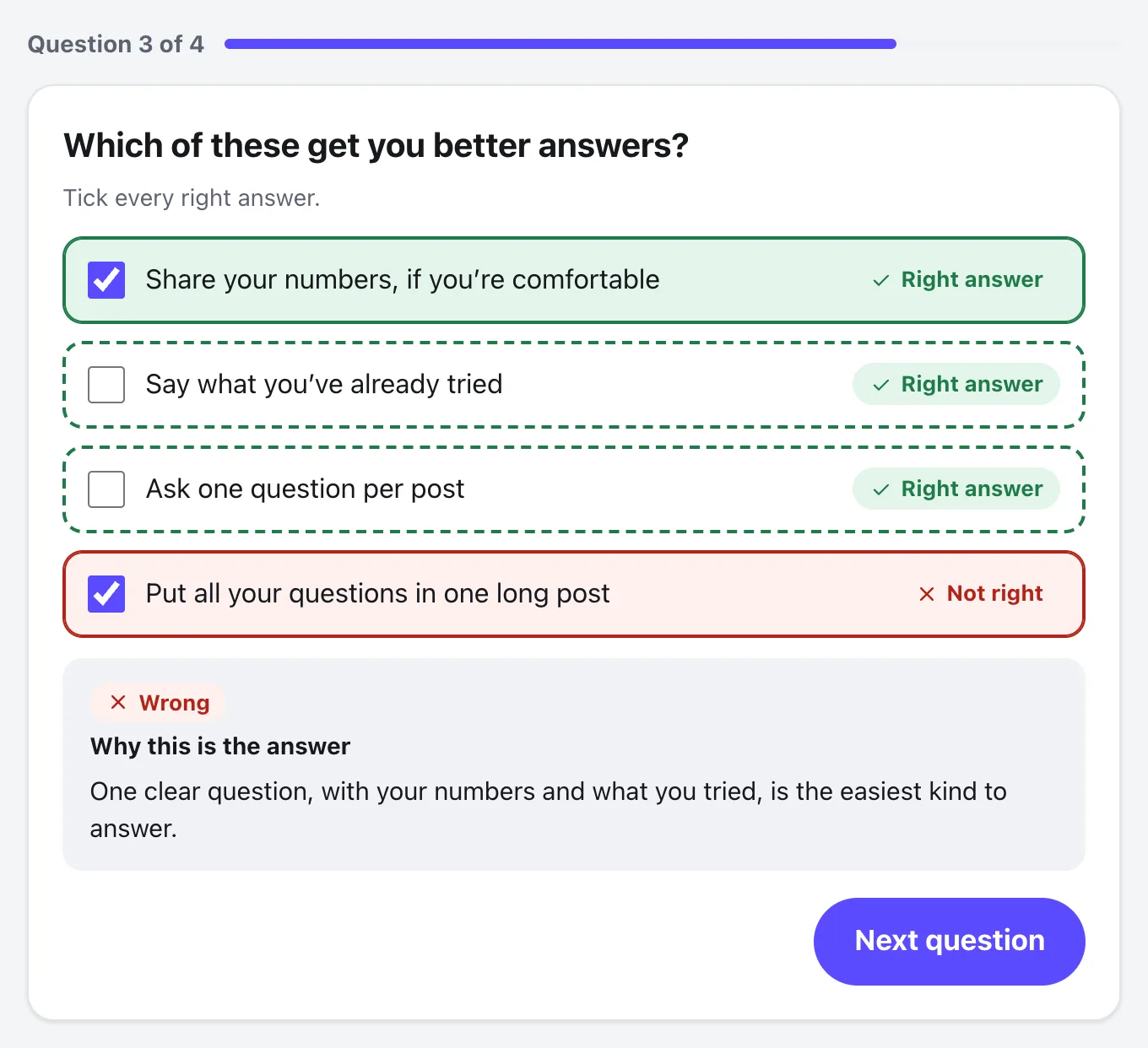
On a lesson with a quiz, members press Take the quiz where Mark Complete usually is. The quiz says how many they need to pass, then shows one question at a time.
They pick an answer and press Check answer. Straight away they see Right or Wrong, every right answer marked Right answer, any wrong pick marked Not right, and your Why.
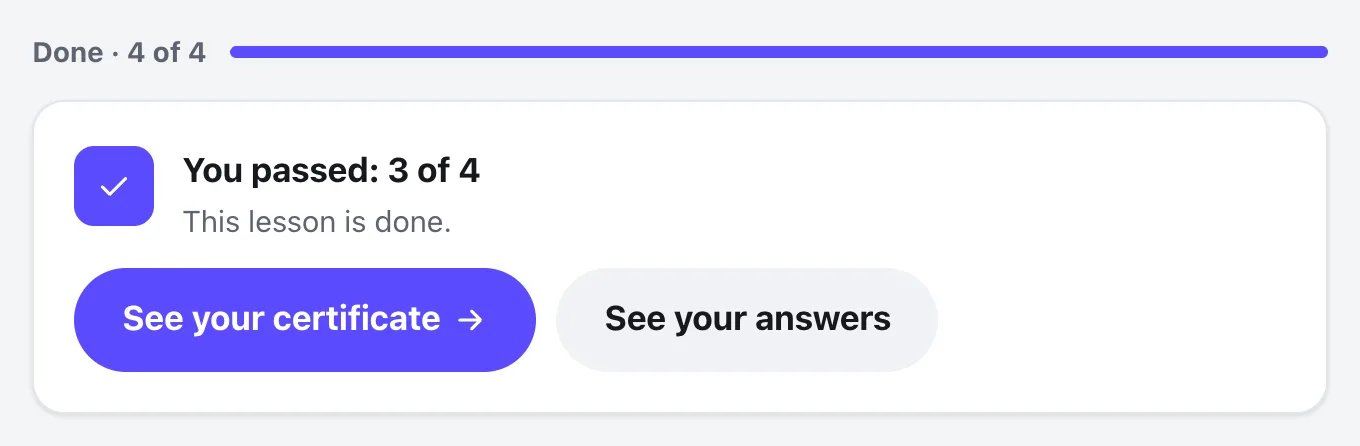
After the last question they see their result, like You passed: 3 of 4, with Next lesson and See your answers. If they didn’t pass, they get Try again. At the end of a course, the button says See your certificate when you give certificates.
Before a member starts a course, its card in the Classroom says how many quizzes it has, like 3 lessons · 1 quiz.
See how members are doing
Once someone has tried the quiz, How are members doing? shows at the bottom of it: how many passed out of the members who tried, and the Hardest question, the one they get right least often. If lots of members miss the same question, it may need a clearer lesson or clearer wording.
Questions
Can members see the right answers before they answer?
No. Answers are checked on your server, so the quiz never sends the right answers ahead. Members see them as soon as they answer each question, and again under See your answers.
Does a quiz have a time limit?
No. Members take it at their own pace. If they leave halfway, the lesson says Carry on where you left off and they pick up at the same question.
Do my own tries count in How are members doing?
No. Tries by you and your moderators, and tries made with See it as a member, work as usual but aren’t counted.
What happens if I delete a question or remove the quiz?
A deleted question goes for good, and members who already passed keep their pass. Remove quiz deletes its questions and results, and members who already finished that lesson keep it as done.
I imported courses from LearnDash or Tutor LMS. Where are the quizzes?
Quizzes aren’t brought over. Add them again in the lesson editor if you want them. Students who finished a course still show it as finished.
Stuck, or something not right? See Troubleshooting, or email us and we’ll help.