Paid add-onsAll docs
CRM Connect
Your CRM and your community, always in step. A tag in your CRM opens a membership, and what members do comes back as tags. One add-on for FluentCRM, GoHighLevel, Salesforce and Keap.
Pick your CRM and connect it
CRM Connect is a paid add-on, $69 a year. To install it, see Add a paid add-on. Only the owner sees Settings › CRM.
- 1
Open Settings › CRM
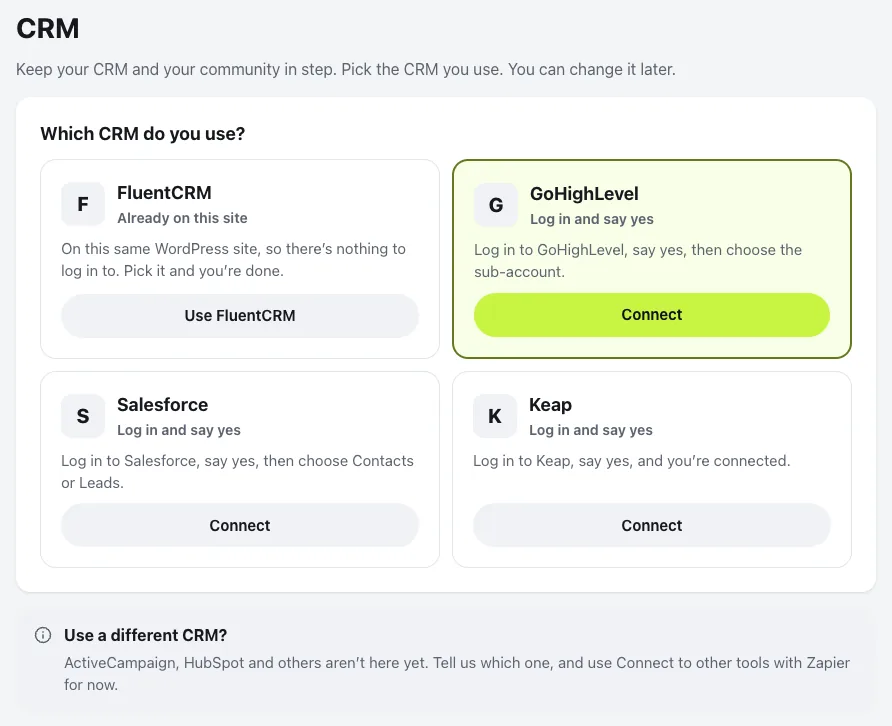
CRM shows in Settings once CRM Connect is installed. Under Which CRM do you use?, the four CRMs are listed.
- 2
Pick yours
FluentCRM is on this same WordPress site, so there’s nothing to log in to: press Use FluentCRM and you’re done. For GoHighLevel, Salesforce or Keap, press Connect.
- 3
Log in and say yes
You log in on your CRM’s own page and say yes, then come straight back. GoHighLevel asks which sub-account your members live in. Salesforce asks two questions, below. Keap goes straight on.
Salesforce asks where your people live, Contacts or Leads, and only looks there, so nobody is matched twice. Salesforce has no tags, so they live in one multi-pick field on the contact, with each tag as one choice. Pick the field, or press Add the field for me to add one called Community tags. Changes in Salesforce reach the community within 5 minutes.
If FluentCRM isn’t on your site yet, install it from Plugins (it’s free), switch it on, then come back and pick it. If you leave your CRM’s page without finishing, nothing is connected and nothing changes: press Try again or pick another CRM.
Once you’re connected, the CRM page shows three steps to finish, in this order:
- 1
Add your first rule
Which tag opens which membership. See Tags open memberships, below.
- 2
Set up the private link
Until you do, tags added in your CRM don’t reach the community.
- 3
Bring everyone in step
Do this last, once your rules are in. Nothing changes until you press Start.
The private link is how your CRM tells the community about changes. It has a secret key, so only your CRM should have it. Press Copy and paste it in your CRM. For GoHighLevel: open Automation and make a workflow with two triggers, Contact Tag with Tag added and Contact Tag with Tag removed, add the action Webhook with the link, then save and publish. Without Tag removed, memberships never end when a tag comes off. Add one of your tags to a test contact and take it off again, and both show in a few seconds.
Tags open memberships
Sell in your CRM, deliver in the community. Add the tag in your CRM and the person gets the membership right away. No account yet? We make one and email a login link. Taking the tag off ends the membership, unless you choose Keep.
- 1
Press Add a rule
In Settings › CRM, open Tags open memberships.
- 2
Pick the tag and the membership
When a contact gets this tag, give them this membership. Tags come from your CRM. Type a new one and we add it there.
- 3
Choose what happens when the tag is taken off
End the membership is best when your CRM takes the tag off after a failed payment. Keep the membership is best for one-off purchases and cohorts.
- 4
Press Save rule
Leave the tick on to give the membership now to everyone who already has the tag. It says how many are members already and how many get an account and a welcome email.
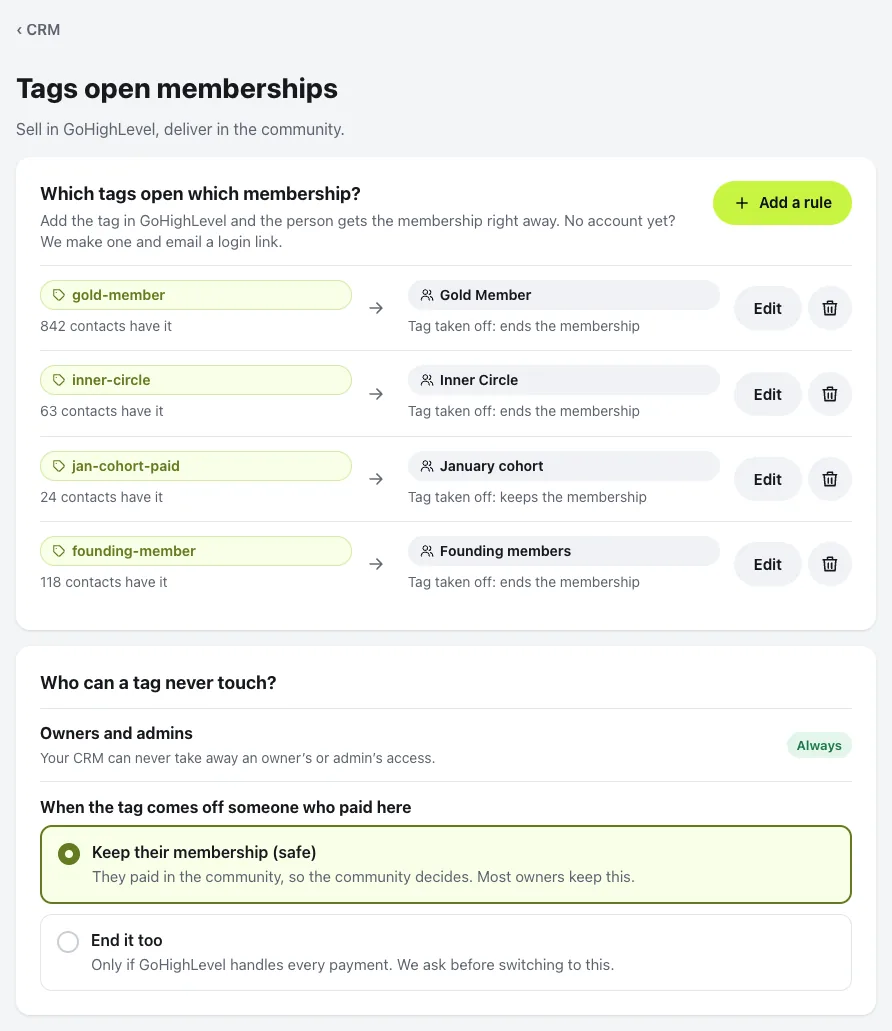
Some people a tag never touches. Your CRM can never take away an owner’s or admin’s access. And when the tag comes off someone who paid in the community, they keep their membership unless you choose End it too, which is only for when your CRM handles every payment.
Deleting a rule asks what happens to everyone who has the membership through it. Keep is the safe choice: nobody loses anything, and new tags just stop giving it.
Already have people in your CRM? Press Start beside Bring everyone in step. It first shows what will happen: members get their CRM contact, and contacts get a membership from their tags. No membership ends during this. It asks once more before it starts, runs in the background, and you can close the page.
What members do comes back
Under Tell your CRM, what members do becomes a tag on their contact. Use the tags in your own workflows, like a welcome series, a nudge or a review ask. The tag names are yours to change.
- Joined the community, the first time they log in.
- Finished a course, one tag for each course.
- Reached a level, one tag for each level.
- Posted for the first time, their first post or comment.
- Went quiet, no visit for 14 days. Taken off again when they come back.
- Came to a live event, marked as going to an event.
- Membership started or ended, bought or ended in the community, not through a tag.
- Left the community, their account was removed.
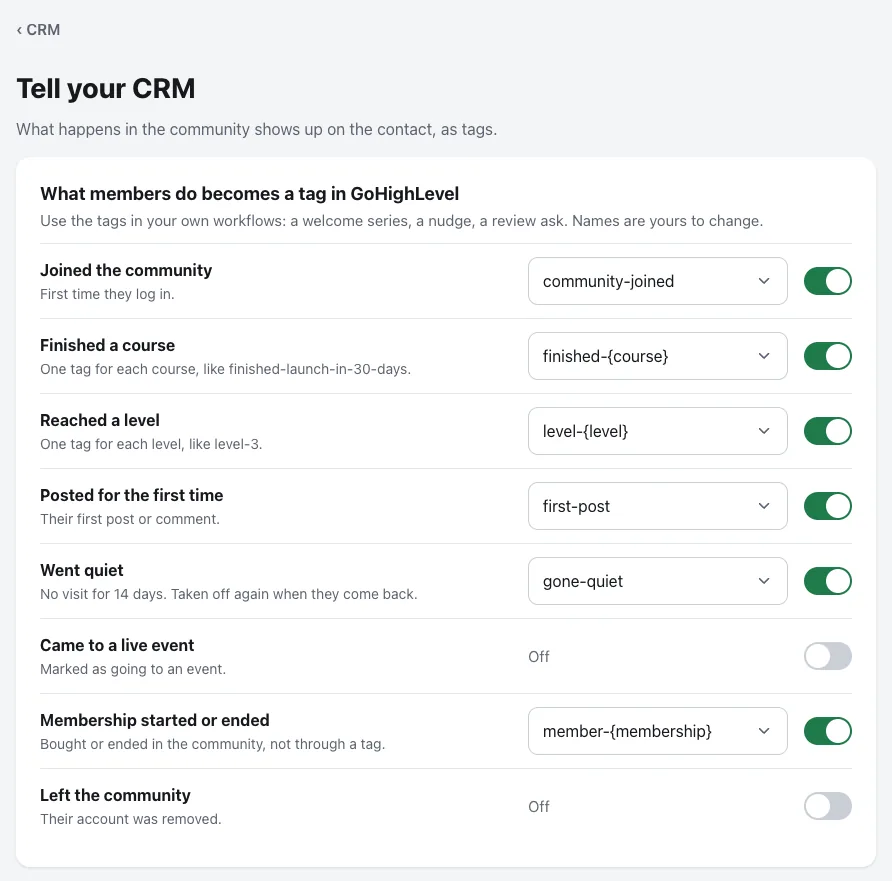
Choose when someone counts as quiet under When is someone quiet? Switching one off stops new tags from then on. Tags already on contacts stay where they are.
Details stay in step
Under Contact details, choose which details go across, and which way: both ways, to your CRM, or from your CRM. Name, email and phone go both ways to start with. Press Add a detail to add more, like a member’s level or last visit in a custom field.
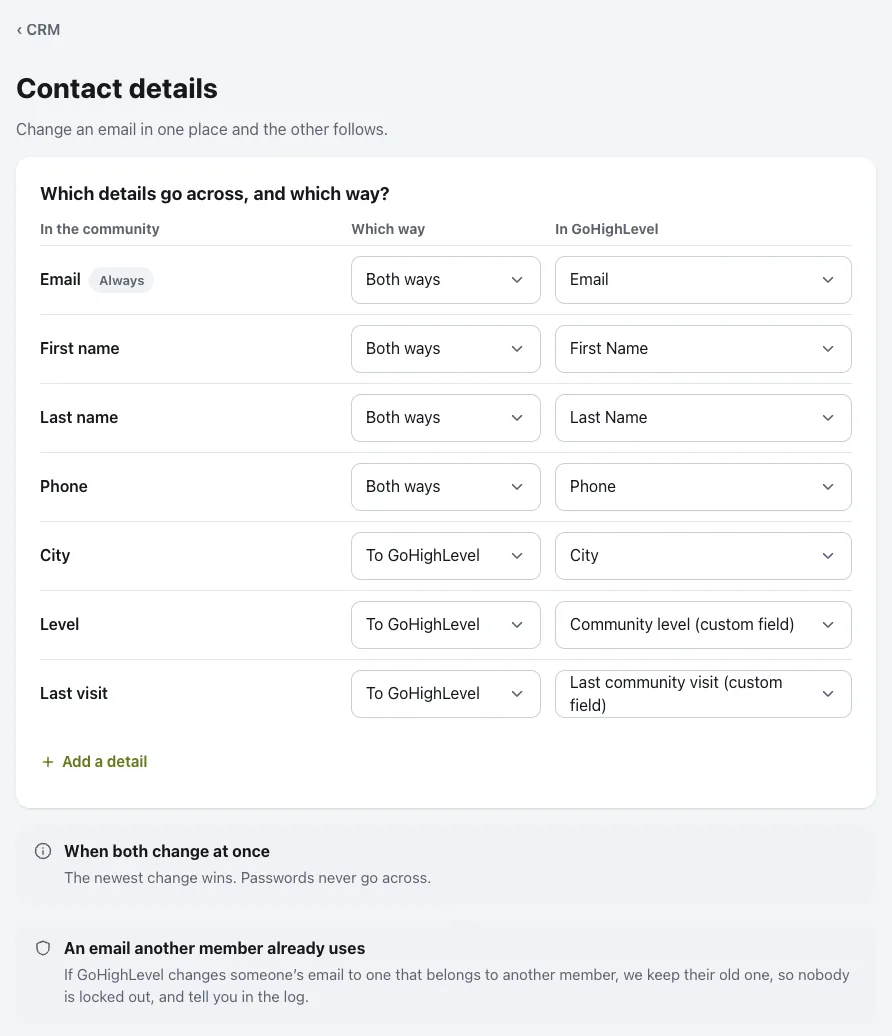
- When both change at once, the newest change wins. Passwords never go across.
- An email another member already uses. If your CRM changes someone’s email to one that belongs to another member, we keep their old one, so nobody is locked out, and tell you in the log.
Each member is matched to a contact by email the first time, then by the contact ID, so changing an email in either place keeps the link. To check someone, use Check one member: it shows their tags and memberships, lets you send them to your CRM again or update them from it, and Find again by email fixes a member linked to the wrong contact.
The log
What was sent lists every message between the community and your CRM for the last 30 days. Older entries clear themselves. Filter it by Everything, Sent, From your CRM or Failed, or press Download.
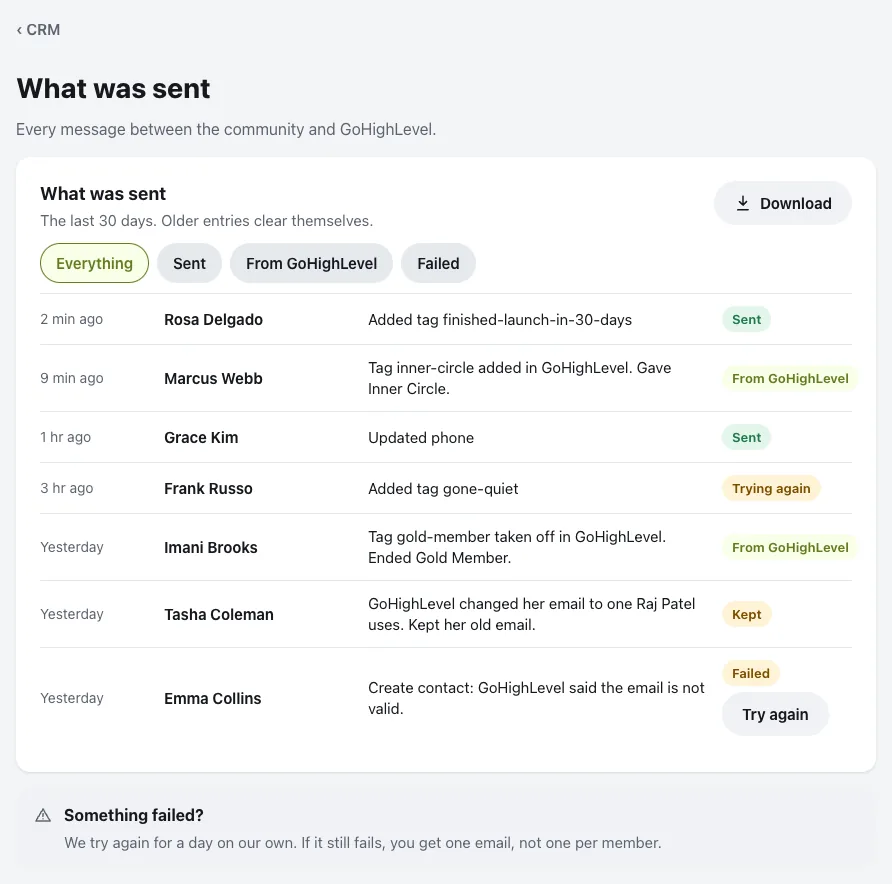
Something failed? We try again for a day on our own. If it still fails, you get one email, not one per member, and the message has Try again in the log.
If your CRM stops letting the community in, the CRM page says so with a button to log in again. Messages wait and nothing is lost, and members keep every membership.
Switch CRM later
One key covers all four CRMs. Press Change beside your CRM and pick another one.
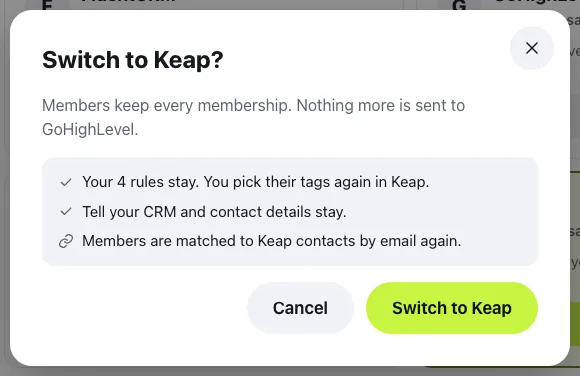
Members keep every membership, and nothing more is sent to the old CRM. Your rules stay, and you pick their tags again in the new CRM. Tell your CRM and contact details stay. Members are matched to the new CRM’s contacts by email again.
To stop using a CRM, press Disconnect under When you need them. Members keep every membership, and tags there stop changing memberships here. Your rules and settings are kept, so connecting again picks up where you left off.
Questions
Will it slow my site down?
No. Messages to your CRM wait until the page has loaded, then go out together. Members never wait for your CRM.
What if my CRM is down?
Nothing is lost. Messages wait and try again for a day, then show in the log with Try again.
Could someone give themselves a membership?
Your CRM tells the community about changes through a private link with a secret key. More than 60 messages a minute are turned away, and owners and admins are never changed by your CRM.
I test on a copy of my site.
Copies are spotted and paused, so a test never emails real people or changes real contacts. If the copy really is your site now, press This is my real site, and choose whether to send what waited or throw it away.
Do you see my CRM password?
No. You log in on your CRM’s own page. The community only gets a key it can use for your account.
My CRM isn’t listed.
ActiveCampaign, HubSpot and others aren’t here yet. Tell us which one you use.
Stuck, or something not right? See Troubleshooting, or email us and we’ll help.