ClassroomAll docs
Give certificates
Members get a certificate when they finish a course, with your logo and main color. They can download it, share it and prove it’s real.
Turn them on
- 1
Open Community settings, then Certificates
Certificates is under Content in the settings menu.
- 2
Turn on Give certificates
Members get one when they finish a course.
- 3
Choose which courses give one
All courses, or Chosen courses. For chosen ones, press the button under Chosen courses and tick each course.
- 4
Press Save changes
It’s in the bar that shows at the bottom once you change something.
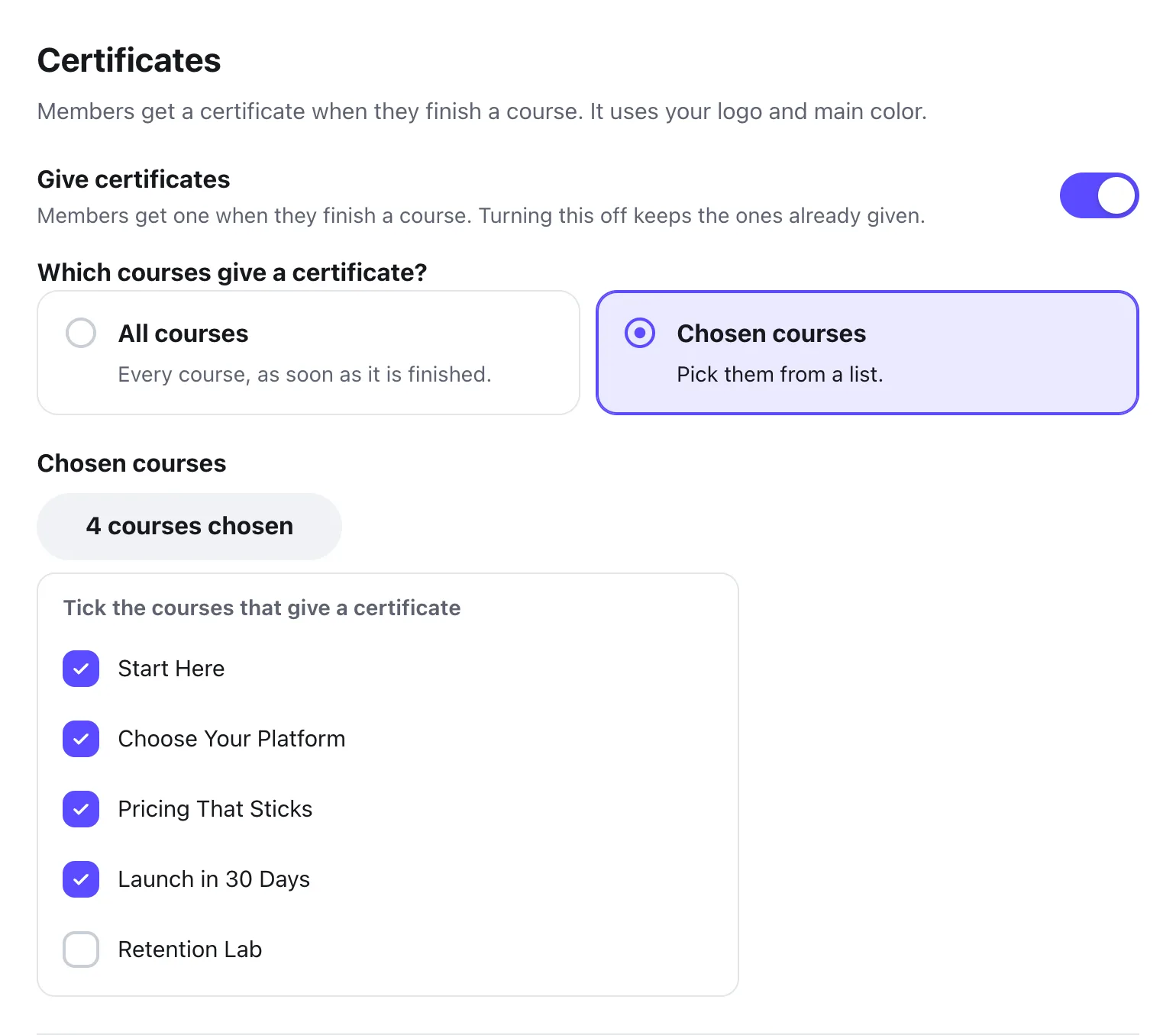
A course is finished when every lesson in it is done. A lesson with a quiz is done once the member passes it, or finishes it when you chose They can move on anyway. See Add a quiz to a lesson.
Choose what it says
Under What does it say?, fill in what you like. How it looks shows the certificate as you type.
Title
Certificate of completion, unless you type your own.
Signed by and Their role
Who gave it, like your name and Host. Left empty, it uses your community’s host and Host.
Signature
Optional. Upload a picture of a signature on a plain background.
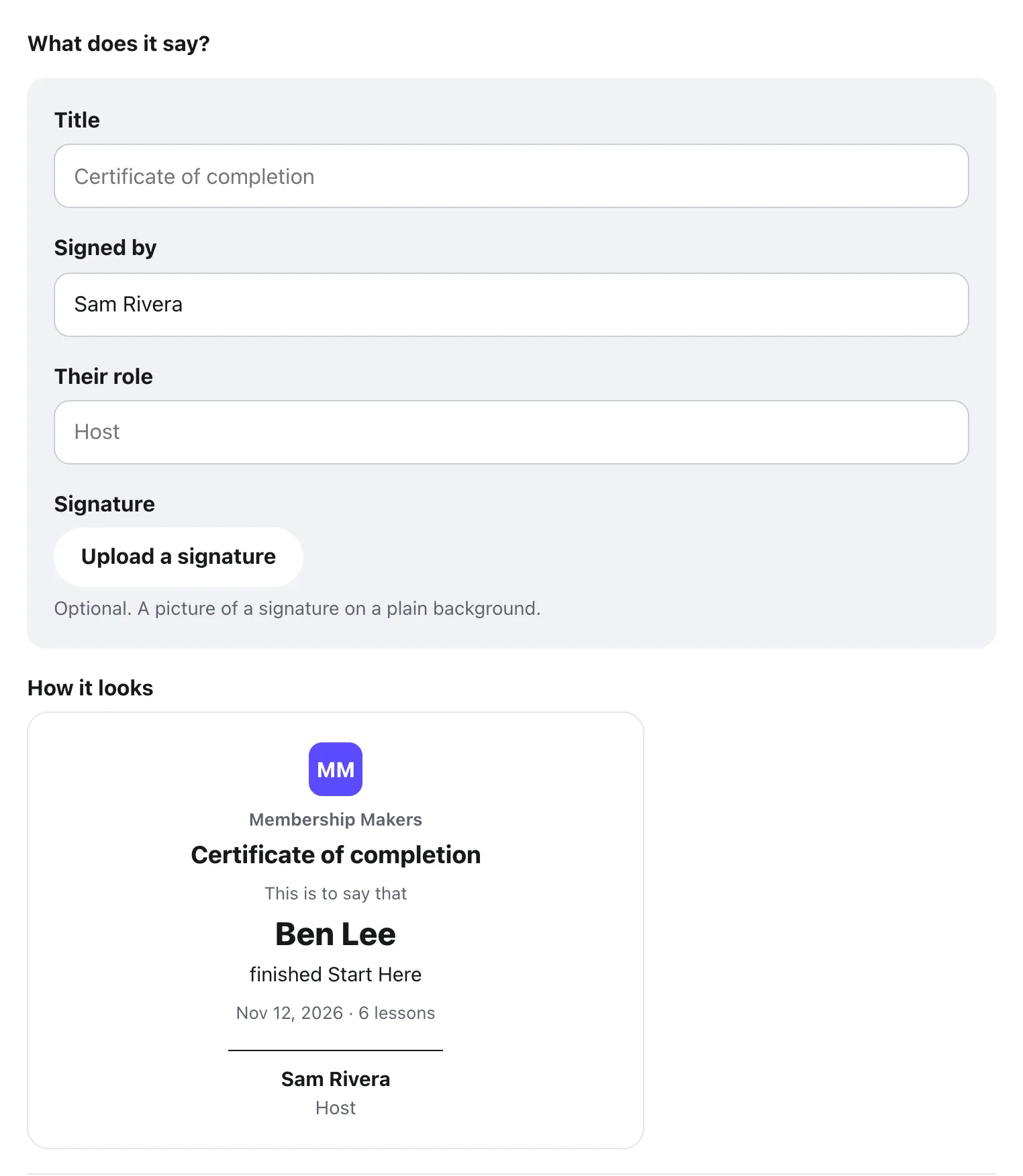
The logo, name and main color come from Your community in Settings. Change them there and every certificate follows.
Two switches at the bottom finish it off. Show certificates on profiles lets other members see which courses someone finished. Let anyone check a certificate gives each one a private link for employers.
What members get
When a member finishes the last lesson, they see You finished and the course name, with their certificate. It says their name, the course, the day they finished and how many lessons it had, signed by the name you chose.
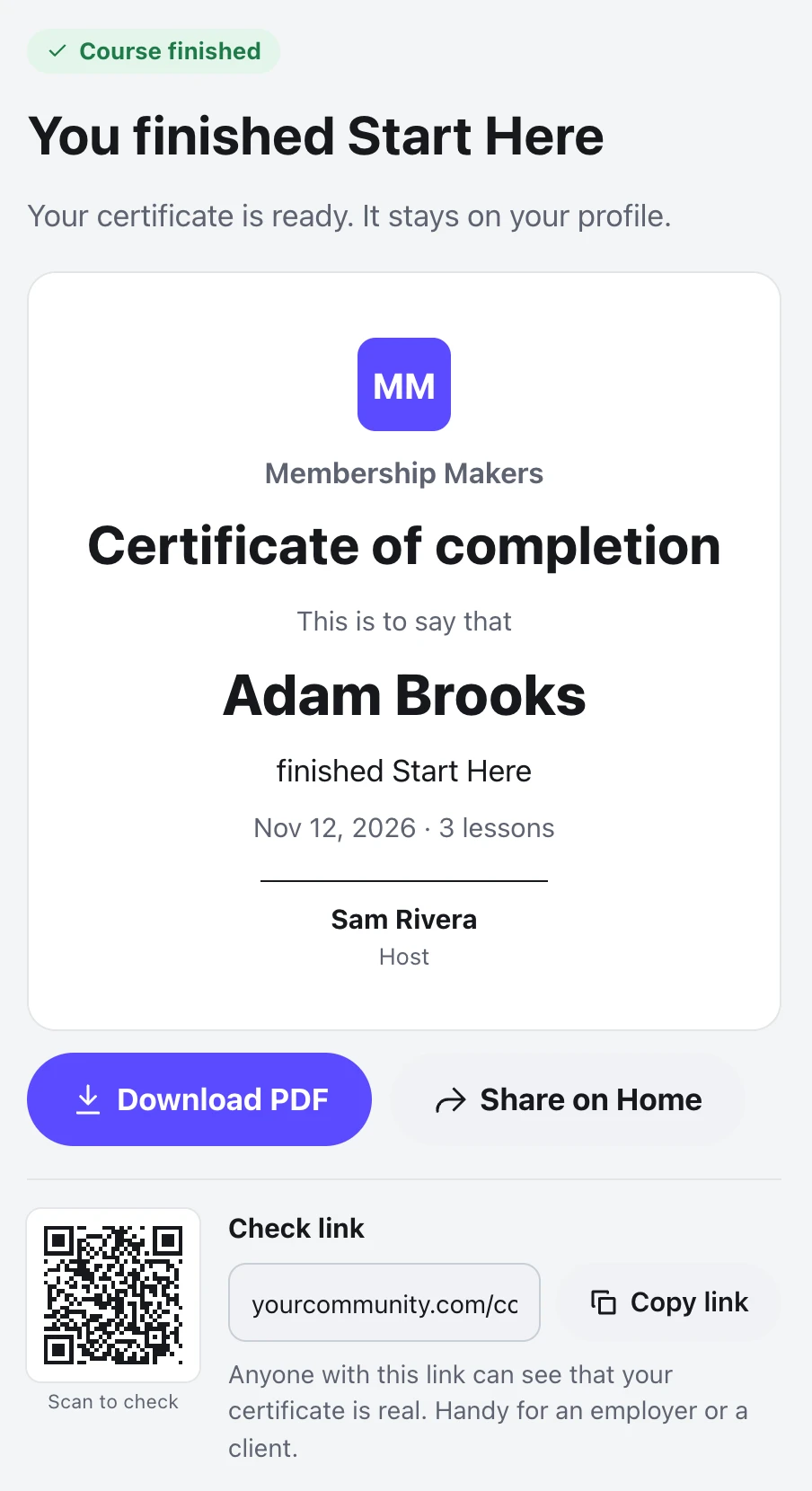
- Download PDF saves it as a PDF file, landscape, ready to print, named like Membership Makers - Certificate - Start Here.pdf. A QR code in the bottom right says Scan to check.
- Share on Home opens a new post with a thank-you line already written and the course attached, so they can change it and post it.
- Check link and Copy link give them the link to prove it’s real, with the same QR code beside it.
The certificate stays on their profile under Certificates, where they can press View to download or share it again.
The check link
Anyone with a member’s check link sees a simple page that says This certificate is real, with their name, the course, the day they finished and your community’s name. There’s no menu and no login, so it’s easy to send to an employer or a client. Scanning the QR code with a phone camera opens the same page.
The QR code is made on the member’s own device, so the link never goes to an outside service. Like the link, it only shows when Let anyone check a certificate is on.
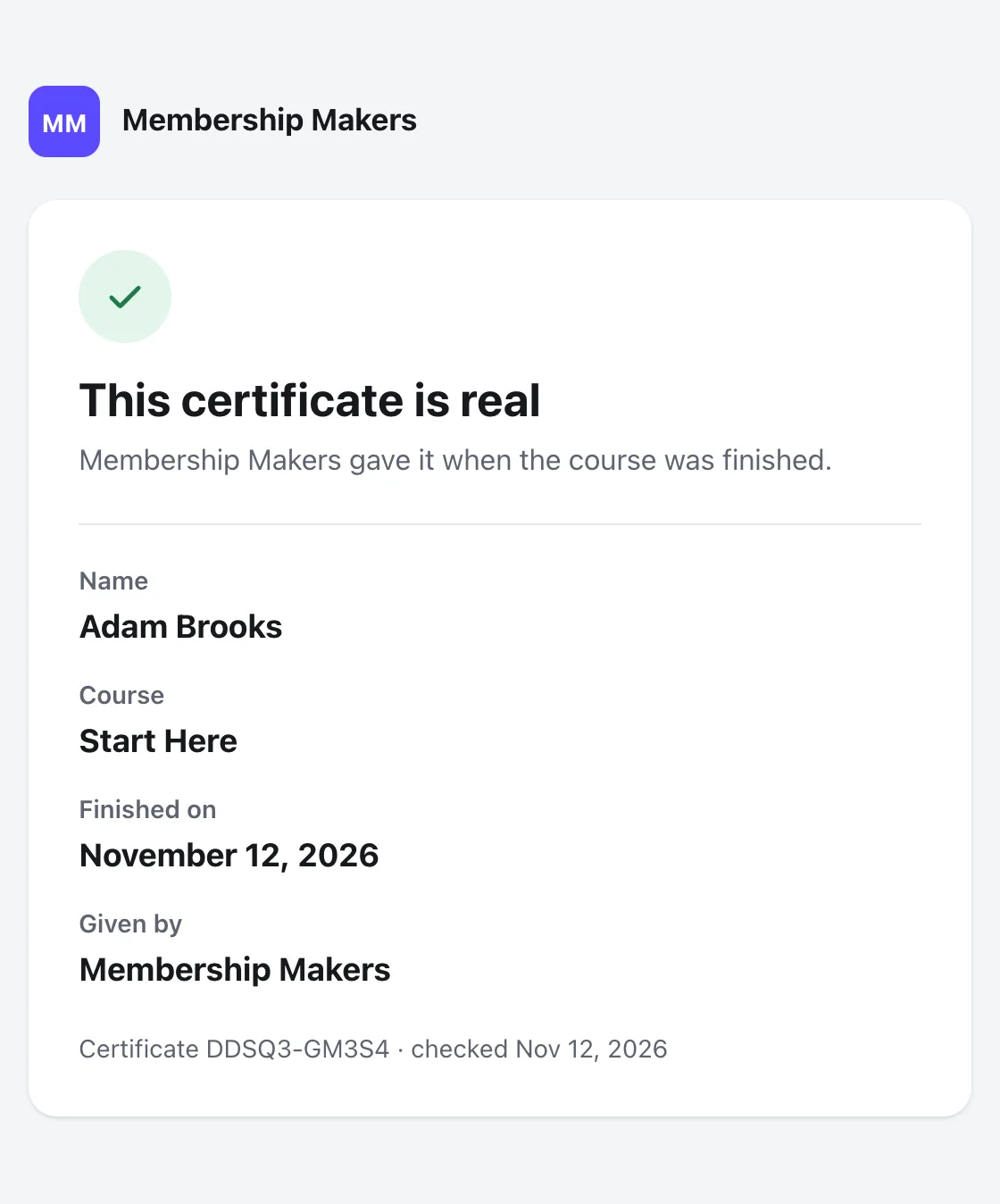
A link that doesn’t match a certificate, or one you removed, says Not found or removed. Search engines don’t list these pages.
Remove a certificate
You and your moderators can take one away, for example if it was given by mistake. Open the member’s profile, press ⋯ beside the certificate, then Remove certificate.
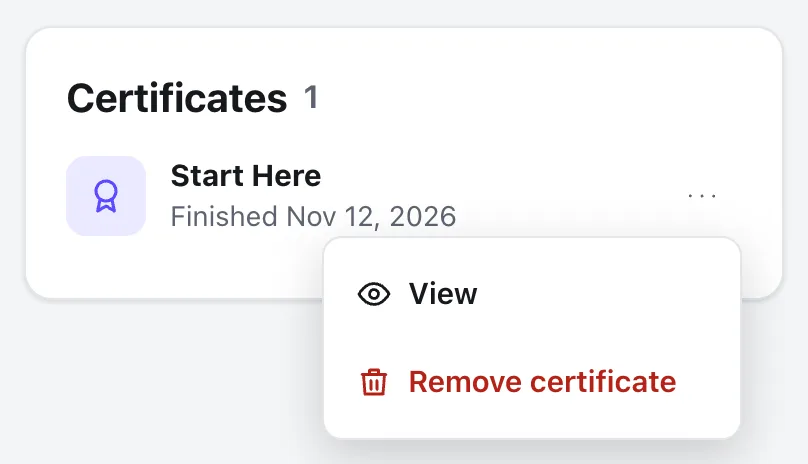
Their lessons and quiz results stay. The certificate won’t come back on its own, even if they finish the course again.
Questions
Do members who finished a course before I turned this on get one?
Yes. They get theirs too, dated the day they really finished. The same goes for students who come in through an import.
What if a member changes their name?
The certificate shows their name as it is now. The day they finished never changes.
What if I turn certificates off, or untick a course?
Members keep the certificates they already have. Nobody gets a new one until you turn it back on or tick the course again.
Does the member know when I remove a certificate?
They get no alert. It goes from their profile, its check link says Not found or removed, and it doesn’t come back on its own.
My site is behind Cloudflare. Does the check page still work?
Yes. A real check link always opens. To stop guessing, one address can try 30 wrong codes an hour. Behind Cloudflare or another proxy, every visitor can look like the same address, so ask your developer to pass the visitor’s real address with the membuild_community/visitor_ip filter.
Stuck, or something not right? See Troubleshooting, or email us and we’ll help.